
Written by the StreamX Editorial Team — Updated October 2026
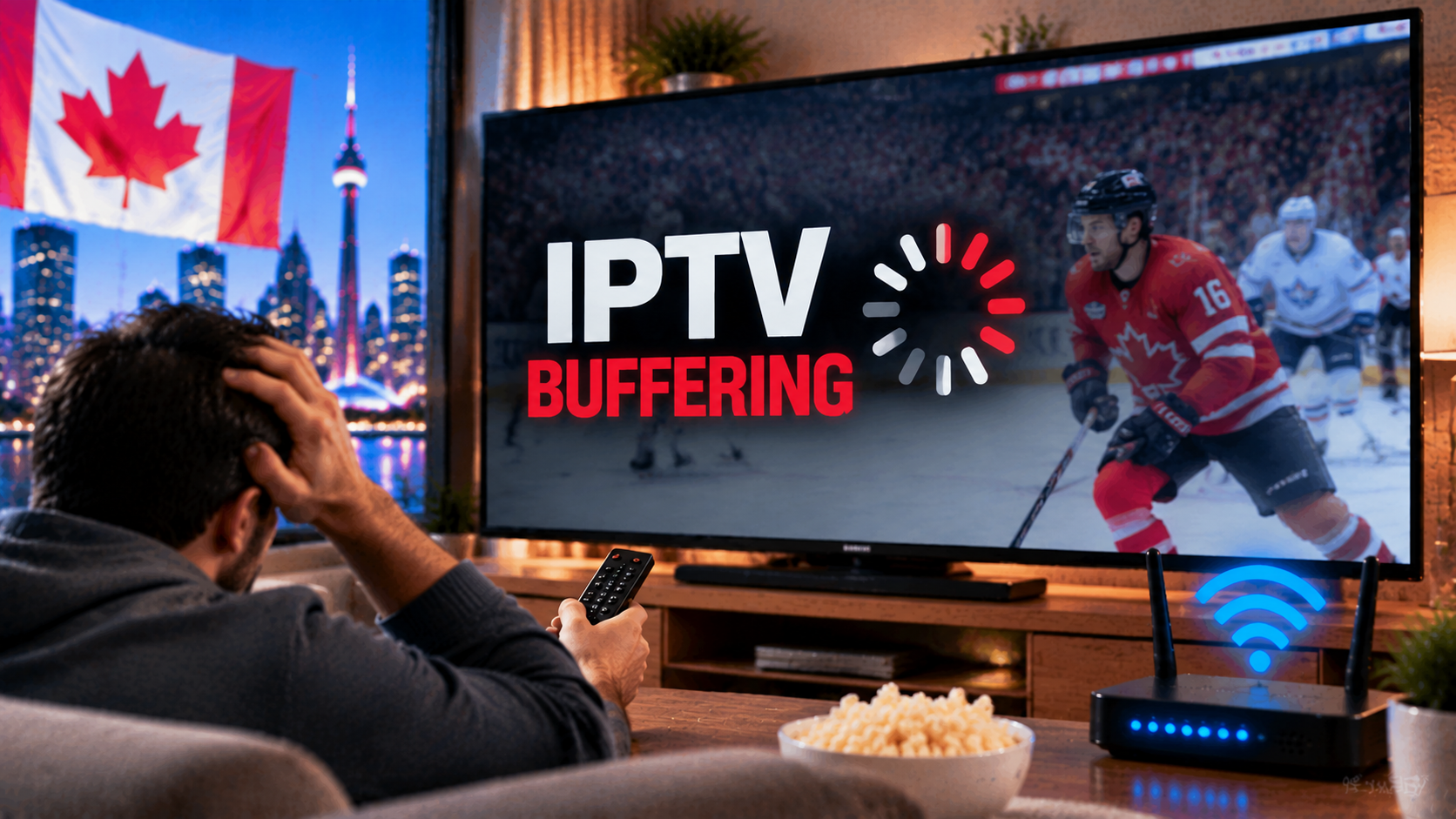
Nothing ruins a playoff game faster than the spinning wheel. IPTV buffering is the most common complaint from Canadian cord-cutters, but it is also very fixable — once you know where the problem actually is. Buffering can come from four places: your device, your home network, your internet connection or the IPTV server. This guide helps you figure out which one in about five minutes, then walks you through the fixes that make the biggest difference.
Quick answer: Restart your streaming device and router, connect the TV device by Ethernet or 5 GHz Wi-Fi, clear the IPTV app’s cache, increase the player’s buffer size, and test your speed on the TV device during the evening (aim for 15 Mbps per HD stream). If only certain channels buffer, the issue is likely the source — contact your provider. If everything buffers, it is almost always your Wi-Fi or device.
Step 1: Diagnose in 5 Minutes
| Test | If yes… | Likely cause |
|---|---|---|
| Do YouTube and Netflix also buffer on the same device? | Problem is not IPTV-specific | Wi-Fi, device or internet |
| Does only one channel buffer? | Others play fine | That channel’s source |
| Does it only happen 7–11 p.m.? | Fine during the day | Congestion (home, ISP or server) |
| Does it play smoothly on your phone next to the router? | TV buffers, phone does not | Wi-Fi reaching the TV |
| Does it play smoothly on a different device? | Only one device struggles | That device or app |
Step 2: Quick Fixes (Try These First)
- Restart everything: unplug the router and streaming device for 30 seconds.
- Clear the IPTV app’s cache — on Fire TV, see our clear cache guide.
- Close background apps and pause downloads on other devices.
- Switch channels and come back to reset the stream.
- Update your IPTV app and the device’s system software.
Step 3: Fix Your Wi-Fi (the #1 Cause)
- Use Ethernet for the main TV if at all possible.
- Connect to 5 GHz (or 6 GHz), not 2.4 GHz.
- Move the router to a central, elevated spot, away from microwaves and metal.
- Use the Firestick’s HDMI extender so the stick is not hidden behind the TV.
- Add a mesh system or powerline adapter for basements, plexes and multi-storey homes.
Test speed on the TV device itself with Speedtest or the CIRA Internet Performance Test. Our internet speed guide explains how much you need.
Step 4: Tune Your IPTV Player
| Player | Setting to change |
|---|---|
| TiviMate | Settings > Playback > Buffer size: Large; try the alternative player for problem channels |
| IPTV Smarters Pro | Settings > Player selection: switch between built-in and alternative players; try a different stream format (.ts vs .m3u8) |
| Kodi | Increase cache in advanced settings |
| Apple TV players | Enable Match Frame Rate; try a different decoder setting if offered |
Setup guides: TiviMate, IPTV Smarters Pro, Apple TV.
Step 5: Check Your Device
- Storage: keep at least 1–2 GB free.
- Power: use the wall adapter, not a TV USB port — underpowered sticks throttle and freeze.
- Age: older sticks struggle with large guides and HD sports. Consider a Fire TV Stick 4K Max or an Android TV box.
- Overheating: sticks tucked behind TVs can overheat; use the extender for airflow.
Step 6: Check Your Internet Connection
- Run speed tests at different times; if evening speeds drop far below your plan, contact your ISP.
- Check your modem’s status lights and restart it.
- Make sure you have not hit a data cap — see our data usage guide.
- Wondering about ISP interference? Read IPTV and your ISP.
Step 7: When It’s the Provider
If everything on your side tests well and buffering happens across many channels at peak times, the IPTV server may be overloaded. Contact support with details (channel, time, device). A good provider responds quickly and can switch you to another server. If it keeps happening, it is a sign to reconsider your provider — see our provider checklist.
Special Case: Live Sports
- Use Ethernet for game nights.
- Pick the HD feed over 4K if your connection is borderline — see our 4K guide.
- Restart the device before puck drop.
- Keep a backup feed of the same channel in your favourites.
Test a Smoother Setup
Want to see whether the problem is your provider? Run a free 24-hour StreamX trial on the same device and network during peak hours. If it plays smoothly, you have your answer. Plans are on our pricing page. For non-buffering problems, see IPTV not working: 10 fixes.
Frequently Asked Questions
Why does my IPTV keep buffering?
The most common causes are weak Wi-Fi to the TV, an underpowered or overloaded streaming device, evening congestion and overloaded IPTV servers.
How do I stop IPTV buffering on a Firestick?
Restart the stick and router, clear the app cache, connect via Ethernet or 5 GHz Wi-Fi, use the wall power adapter and increase the buffer size in your IPTV player.
What buffer size should I use for IPTV?
Large is a good setting for live sports in players like TiviMate. Use Medium if channel switching becomes too slow.
Does a faster internet plan fix IPTV buffering?
Not usually. Most buffering is caused by Wi-Fi or the device. Test speed on the TV device itself before upgrading your plan.
Why does only one IPTV channel buffer?
That channel’s source is likely having problems. Try again later, use a backup version of the channel or contact your provider.