
Written by the IPTVCND Editorial Team — Updated October 2026
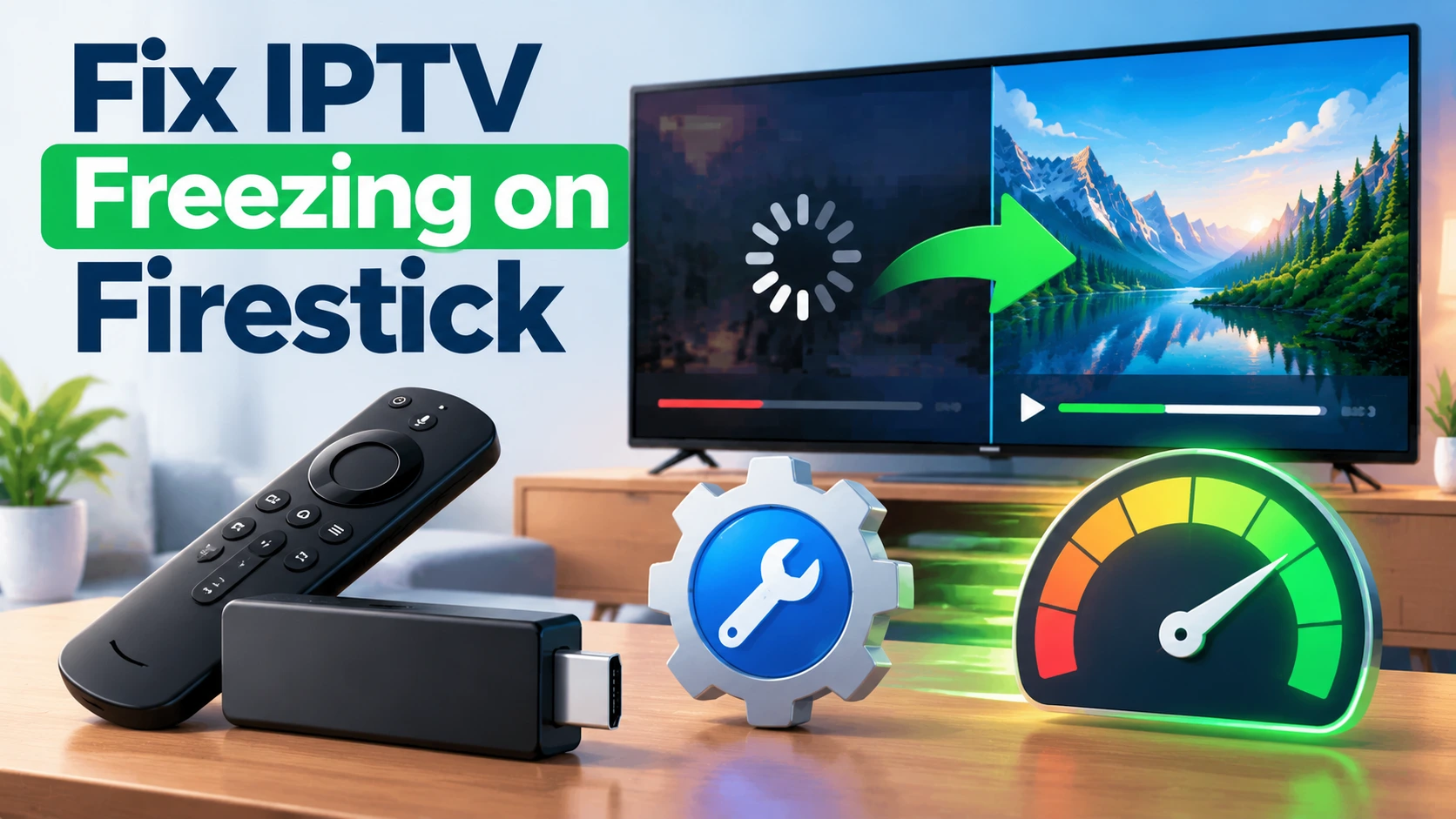
If your Fire TV Stick has become sluggish, your IPTV app freezes on launch, or the TV guide refuses to load, clearing the app cache is the fastest fix — it takes about two minutes and does not delete your settings. Fire TV Sticks have limited storage and memory, and IPTV apps with large channel lists and guides fill their caches quickly. This guide shows you exactly how to clear the cache, when to go further and clear data, and other ways to keep your stick running smoothly.
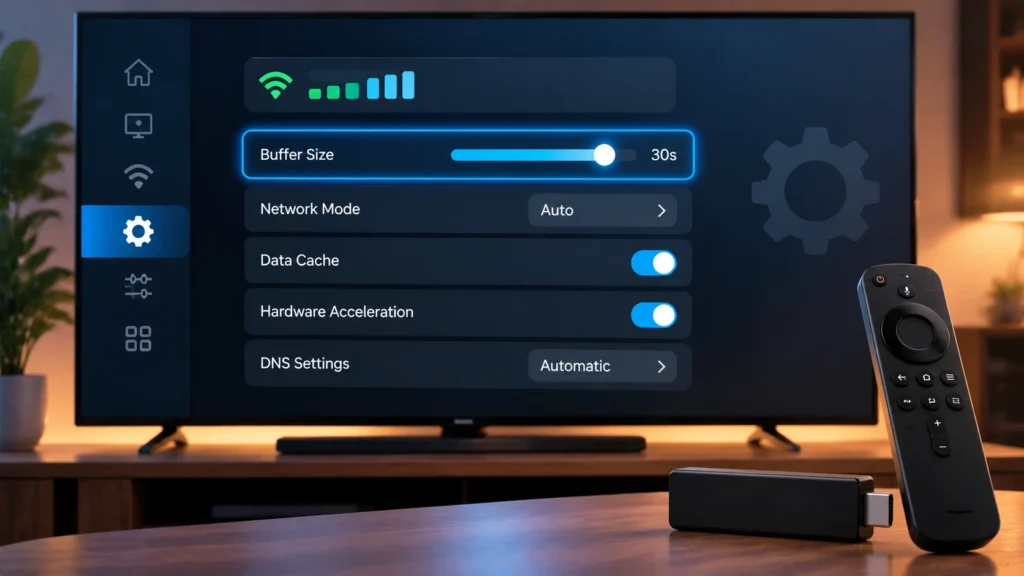
Quick answer: On your Fire TV, go to Settings > Applications > Manage Installed Applications, select your IPTV app (for example TiviMate or IPTV Smarters), then choose Clear cache. Restart the stick from Settings > My Fire TV > Restart. Clearing cache keeps your login and settings; Clear data resets the app completely, so only use it as a last resort.
Step-by-Step: Clear the Cache
- Press the Home button and open Settings (the gear icon).
- Select Applications.
- Choose Manage Installed Applications.
- Scroll to your IPTV app and select it.
- Select Force stop, then Clear cache.
- Repeat for other heavy apps (YouTube, Netflix, browsers).
- Go to Settings > My Fire TV > Restart.
Clear Cache vs Clear Data
| Clear cache | Clear data | |
|---|---|---|
| What it removes | Temporary files (thumbnails, guide cache) | Everything: login, playlists, favourites, settings |
| When to use | Slowness, freezing, guide issues | App will not open or keeps crashing after clearing cache |
| After doing it | Open the app normally | Log in and set up again |
Before clearing data in TiviMate, use its backup feature to save your settings and favourites. Re-entering your login is quick if you have your Xtream Codes details — see our M3U and Xtream Codes guide.
How Often Should You Clear the Cache?
- Every 2–4 weeks for heavy IPTV users.
- Immediately if the guide stops loading or the app freezes.
- After app updates if the app behaves strangely.
Free Up Storage
Low storage slows everything down. Check it in Settings > My Fire TV > About > Storage. To free space:
- Uninstall apps you no longer use.
- Delete leftover APK files in the Downloader app after sideloading.
- Avoid recording to the stick’s internal storage — see our recording guide.
More Ways to Speed Up a Firestick
- Restart weekly: Settings > My Fire TV > Restart, or unplug for 30 seconds.
- Turn off data monitoring and app usage data under Settings > Preferences > Privacy Settings.
- Disable automatic video and audio previews on the home screen under Settings > Preferences > Featured Content.
- Use the wall power adapter, not the TV’s USB port.
- Improve Wi-Fi: use the HDMI extender and the 5 GHz band, and check your speed with Speedtest.
- Hide unused channel groups in your IPTV app so it loads less data.
Still Slow? It Might Be Time to Upgrade
Older Fire TV Sticks can struggle with modern IPTV apps and large guides. A Fire TV Stick 4K Max or an Android TV box is much faster — see our best Firestick for IPTV guide (and avoid Vega OS models if you sideload apps) and our Firestick vs Android box comparison.
Other IPTV Fixes
If clearing the cache does not help, the issue may be your connection or the stream itself. Work through our IPTV buffering guide and IPTV not working fixes. New to IPTV on Fire TV? Start with our Firestick installation guide, or test a smooth setup with an StreamX free trial. Plans are on our pricing page.
Frequently Asked Questions
How do I clear the cache on my Firestick?
Go to Settings, Applications, Manage Installed Applications, select the app, choose Force stop, then Clear cache. Restart the Fire TV afterwards.
Will clearing cache delete my IPTV login?
No. Clearing cache only removes temporary files. Clear data is the option that resets the app and removes your login.
How often should I clear the cache on a Firestick?
Every two to four weeks for heavy IPTV users, or whenever an app freezes or the guide stops loading.
Why is my Firestick so slow?
Common causes are a full cache, low storage, too many apps, weak Wi-Fi or an older model. Clearing cache, uninstalling unused apps and restarting usually helps.
What is the difference between clear cache and clear data?
Clear cache removes temporary files and keeps your settings. Clear data resets the app completely, including your login and favourites.