
Written by the StreamX Editorial Team — Updated June 2026
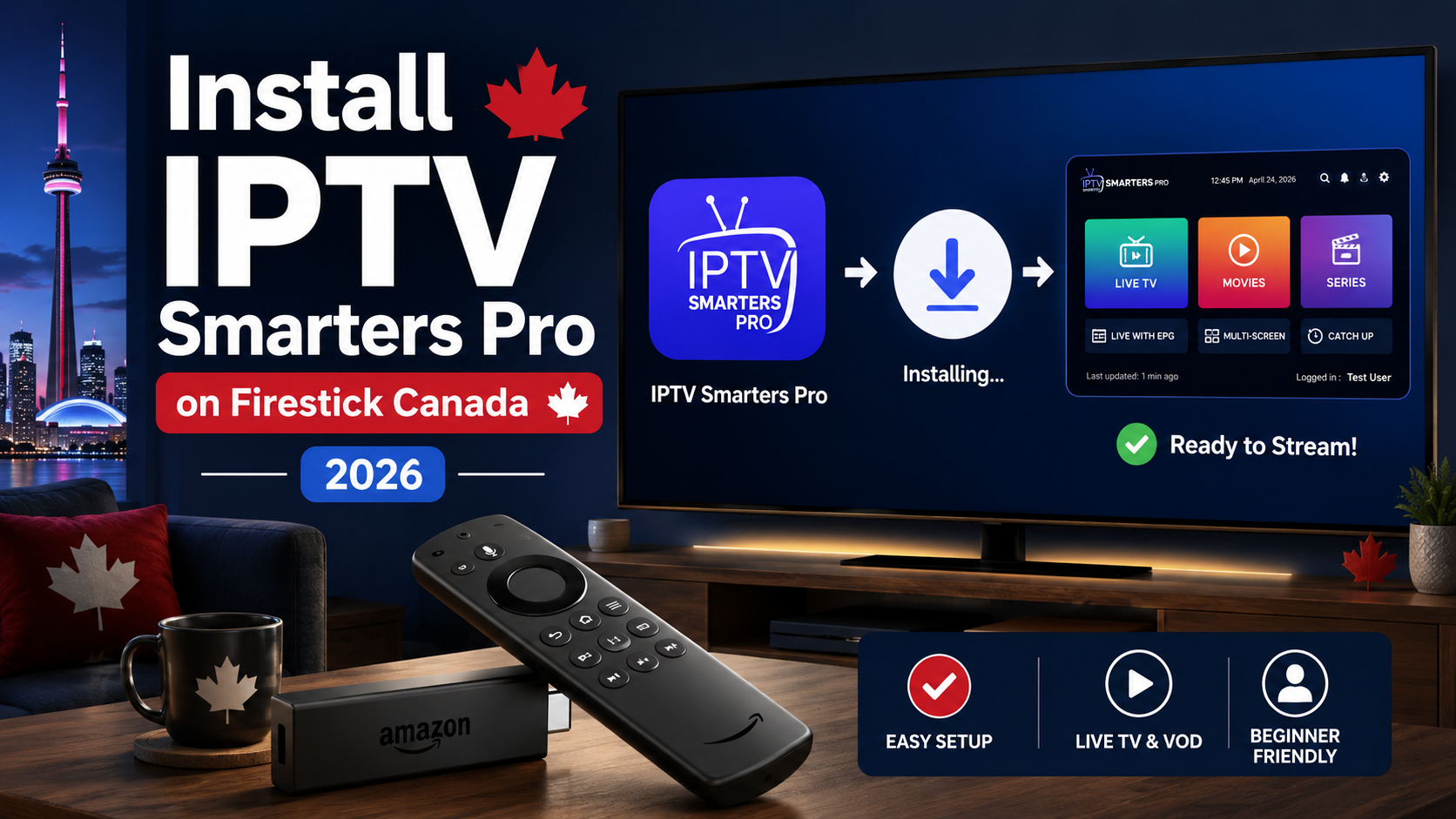
This guide walks you through installing and configuring IPTV Smarters Pro on your Firestick for iptv smarters pro canada — from the initial sideload to EPG timezone setup, Xtream Codes login, and what to do if Bell or Rogers is throttling your connection. The full process takes about 10 minutes. Have your login credentials ready before starting. If you do not have an iptv canada subscription yet, start with an iptv free trial first — your credentials arrive by email.
What You Need Before You Start
Gather these five things before starting the installation.
- Amazon Firestick — any model works. The Firestick 4K or Firestick 4K Max is recommended for HD and 4K streams without lag. An older Firestick Lite handles HD only.
- Active internet connection — minimum 10 Mbps for HD, 25 Mbps for 4K. An Ethernet adapter is recommended for Bell and Rogers users to reduce throttling.
- IPTV subscription credentials — your provider sends these by email: either Xtream Codes (Server URL + Username + Password) or an M3U URL. If you do not have a subscription, get an iptv free trial first.
- Downloader app — free, available in the Amazon Appstore. Install it first — you need it to sideload IPTV Smarters Pro.
- 5–10 minutes — the full configuration takes about 10 minutes from start to first channel.
Step 1 — Enable Apps from Unknown Sources on Your Firestick
This setting must be enabled before your Firestick will accept apps installed outside the official store. Follow these steps exactly.
- From the Firestick home screen, press the Home button on your remote.
- Navigate to Settings (gear icon, top right of the home screen).
- Select My Fire TV.
- Select Developer Options.
- If you do not see Developer Options: select About, then press the centre button on your remote 7 times rapidly. This unlocks the hidden menu.
- Select Apps from Unknown Sources (may appear as Install Unknown Apps depending on your Firestick firmware version).
- Toggle it ON.
This setting only controls which apps can be installed. It does not change how existing apps work or affect your internet connection. You can toggle it off again after installing IPTV Smarters Pro if you prefer.
Step 2 — Install IPTV Smarters Pro Using Downloader
IPTV Smarters Pro is not available in the Amazon Appstore in 2026 and must be sideloaded using the Downloader app. Follow these steps.
- From the Firestick home screen, go to Find → Search, type Downloader, and install it from the Amazon Appstore (it is free).
- Open Downloader.
- Select the URL / search box on the right side of the screen.
- Enter the Downloader code 730116 — this loads the official IPTV Smarters download page directly. Alternatively, enter the URL your IPTV provider supplies.
- Select the IPTV Smarters Pro download from the page that loads.
- Wait for the APK file to download — typically 30–60 seconds depending on your connection speed.
- When prompted, tap Install and wait for installation to complete.
- Tap Done — do not tap Open yet. You will configure the app in the next step.
- Important: go back into Downloader, find the APK file you just used, and delete it. Firestick storage is limited and keeping installer files causes slowdowns.
IPTV Smarters Pro now appears in your apps list. Proceed to the next step before opening it.
Step 3 — Add Your IPTV Subscription (Xtream Codes Method)
Xtream Codes API is the recommended login method for iptv smarters pro canada users. It loads your full channel list, EPG, VOD, and series automatically — and is more stable than M3U on Bell and Rogers connections.
- Open IPTV Smarters Pro from your installed apps.
- When prompted to select a layout, choose TV (not Mobile) and tap Save.
- Read and accept the disclaimer. Smarters Pro is a video player only — it does not supply content.
- On the home screen, tap Add New User.
- Select Login with Xtream Codes API.
- Enter a Profile Name — for example, “streamx” or any label you prefer.
- Enter your Server URL, Username, and Password from the welcome email sent by your iptv service.
- Tap Add User.
- The app loads your channel list and EPG — this takes 30–60 seconds depending on playlist size. Do not close the app during this process.
Using M3U URL Instead? (Alternative Method)
- On the home screen, tap Add New User.
- Select Load Your Playlist or File/URL.
- Enter any name in the Playlist Name field.
- Select M3U URL as the playlist type.
- Enter the full M3U URL provided by your service, then tap Add User.
If you use M3U, you must configure your EPG manually — covered in the next step.
Step 4 — Configure EPG for Canadian Time Zones
Without the correct EPG timezone set, your programme guide shows wrong start times for TSN, Sportsnet, CBC, and every other Canadian channel. This is the most common setup mistake Canadian users make, and it takes seconds to fix.
- In IPTV Smarters Pro, go to Settings (gear icon).
- Select General.
- Select Time Zone.
- Choose the timezone matching your province:
- Eastern Time — Ontario, Quebec
- Central Time — Manitoba, Saskatchewan
- Mountain Time — Alberta, Northwest Territories
- Pacific Time — British Columbia, Yukon
- Atlantic Time — Nova Scotia, New Brunswick, PEI
- Newfoundland Time — Newfoundland & Labrador
- Return to the home screen and relaunch Live TV — your EPG now reflects your local broadcast schedule.
If you are on M3U, also go to Settings → EPG, paste your EPG URL from your provider, and enable Auto-Update EPG.
Step 5 — Recommended Settings for Canadian IPTV Users
These settings improve stream quality specifically for Canadian viewers. Adjusting them prevents audio sync issues and gives you faster access to your regional channels.
Video Player — set to Built-In Player (Settings → Player → Built-In) The built-in player handles the stream formats used by most Canadian providers more reliably than external players like VLC. External players cause audio sync issues on Sportsnet and TSN broadcast streams.
Stream Reconnect — enable (Settings → Player → Auto-Reconnect) If a stream drops briefly — common during NHL playoff peak traffic — Auto-Reconnect restores the feed without requiring you to manually reopen the channel.
Favourites — set up your Canadian channels (tap the star icon on any channel) Add TSN, your regional Sportsnet feed, CBC, CTV, and Global to Favourites. During live sports you want one-tap access, not scrolling through hundreds of channels.
Parental Controls — optional (Settings → Parental Control) Set a PIN to restrict access to adult content categories — useful for households with children.
Bell or Rogers User? Fix ISP Throttling on Firestick
Bell and Rogers use deep packet inspection (DPI) to detect and slow down high-bandwidth IPTV streams, particularly between 7–10pm. If streaming is fine in the afternoon but buffers every evening, ISP throttling is the likely cause — not your iptv provider.
Ethernet over Wi-Fi Connect your Firestick via an Ethernet adapter ($15–$25 CAD at Amazon Canada). Wired connections are harder for ISPs to throttle and significantly reduce buffering on Bell and Rogers home networks.
Install a VPN on your Firestick NordVPN, ExpressVPN, and ProtonVPN all have dedicated Firestick apps in the Amazon Appstore. Enable the VPN before opening IPTV Smarters Pro — it encrypts your traffic and prevents DPI throttling. Connect to a Canadian server for the lowest latency.
Contact your IPTV provider streamx.ca’s server infrastructure includes anti-throttle routing. If throttling persists even with a VPN and a wired connection, contact support — there may be a server path optimised for your specific ISP.
IPTV Smarters Pro Not Working? Quick Fixes
Here are the five most common problems Canadian users encounter after setup, and exactly how to resolve them.
App won’t install — “This app is not compatible” Your Firestick firmware may need updating before it accepts the APK. Go to Settings → My Fire TV → About → Check for Updates. After updating, retry the Downloader installation.
Channels load but EPG shows wrong times Your Canadian timezone has not been set. Go to Settings → General → Time Zone and select your province’s zone (see Step 4 above for the full list).
Stream buffers constantly in the evening Peak-hour ISP throttling from Bell or Rogers. Connect via Ethernet adapter and install a VPN before opening the app (see the throttling section above).
App crashes when loading large playlists Firestick storage or RAM is overloaded. Clear the app cache: Settings → Applications → Manage Installed Applications → IPTV Smarters Pro → Clear Cache. Also delete unused apps to free storage.
Channels show but no sound on TSN or Sportsnet A codec compatibility issue with your current player. Go to Settings → Player and switch from Built-In to MX Player or VLC Player. MX Player is free from the Amazon Appstore if you do not have it installed.
IPTV Smarters Pro Firestick Canada — FAQ
Is IPTV Smarters Pro free on Firestick?
Yes — the core app is free to download and use. A paid version with extra interface features exists, but most Canadian users never need it. You do need a separate IPTV subscription to access channels — the app is a player only, it provides no content itself.
Why isn’t IPTV Smarters Pro in the Amazon Appstore?
Amazon periodically removes IPTV player apps from its Appstore. IPTV Smarters Pro must be sideloaded using the Downloader app — the full steps are in Step 2 above. This is a one-time 10-minute process that does not need to be repeated.
Should I use Xtream Codes or M3U with IPTV Smarters Pro?
Xtream Codes is the recommended method for iptv smarters pro canada setups. It loads your EPG automatically, handles channel categories more cleanly, and is more stable on Bell and Rogers connections than M3U URLs, which can expire or get blocked without warning.
How do I get IPTV Smarters Pro credentials for Canada?
Your IPTV provider sends credentials by email after you subscribe or start a trial — the Server URL, Username, and Password for Xtream Codes login, or an M3U URL. If you do not have a subscription yet, start with an iptv free trial.
Does IPTV Smarters Pro work on all Firestick models?
Yes — IPTV Smarters Pro works on all Firestick models: the original Firestick HD, Firestick 4K, Firestick 4K Max, and the Fire TV Cube. For 4K streams, the Firestick 4K or 4K Max is the recommended device.
Setting up iptv smarters pro canada is a 10-minute process that most Canadians complete without issues. The steps that separate a working setup from a frustrating one are Canada-specific: the EPG timezone, the Xtream Codes login method, and the ISP throttling fix for Bell and Rogers users. If you do not have an active iptv subscription yet, an iptv free trial is the right starting point — credentials arrive by email and the setup takes minutes.