
Written by the StreamX Editorial Team — Updated October 2026
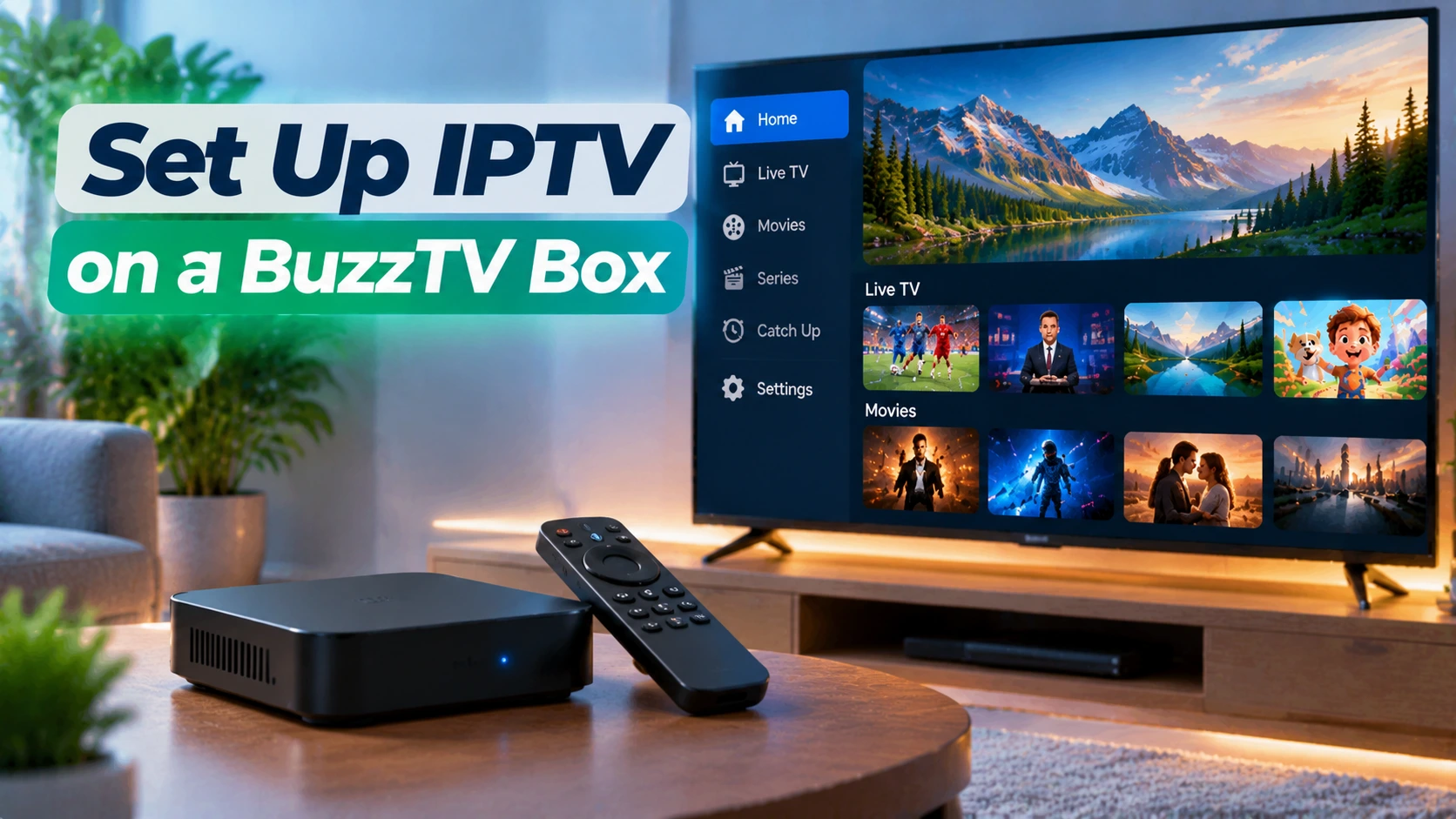
BuzzTV boxes are a familiar sight in Canadian living rooms. They are Android-based boxes designed specifically for IPTV, with a dedicated remote, an Ethernet port and a built-in player app that feels a lot like a cable box. If you have just bought one — or inherited one from a relative — this guide explains exactly how to set it up, how to add your IPTV service, whether to use the built-in BuzzTV app or a third-party player like TiviMate, and how to fix the problems people run into most.
Quick answer: Connect the BuzzTV box by Ethernet, run all system and app updates, then open the built-in BuzzTV player and add your IPTV provider using the Xtream Codes details (server URL, username, password) or portal information your provider supplied. BuzzTV is the box, not the TV service — you still need an IPTV subscription. Because it runs Android, you can also install TiviMate or IPTV Smarters Pro if you prefer their interface.
BuzzTV Is Hardware, Not a Subscription
One of the most common searches in Canada is “BuzzTV subscription”, and it reflects a widespread misunderstanding. BuzzTV makes the hardware and the player software. It does not supply channels. To watch live TV, you add a subscription from an IPTV provider to the box. If a seller offers a “BuzzTV with lifetime channels”, be careful — the channels come from a third party that may disappear. Our guide on how to choose a trusted IPTV provider explains what to look for, and our cheap IPTV guide explains why “lifetime” deals are a red flag.
What You Need
- A BuzzTV box with its power adapter, HDMI cable and remote.
- An IPTV subscription with Xtream Codes or portal login details. Try ours with a free 24-hour trial.
- An internet connection of about 15 Mbps per HD stream (25 Mbps or more for 4K).
- Ideally, an Ethernet cable to the router.
Step 1: Connect and Update
- Connect HDMI and power, then switch your TV to the right input.
- Connect to the internet. Plug in Ethernet if you can — BuzzTV boxes are built for wired use, and it makes a noticeable difference for live sports.
- Set language, time zone and resolution when prompted. Getting the time zone right matters, because the TV guide uses it.
- Run updates. Open the box’s system update or “Update Centre” and install everything available. Then update the BuzzTV player app.
- Restart the box once updates are complete.
Step 2: Add Your IPTV Provider in the BuzzTV App
Menu names vary between BuzzTV models and software versions, but the process is the same:
- Open the built-in BuzzTV player.
- Go to its settings and find the option to add a provider, profile or account.
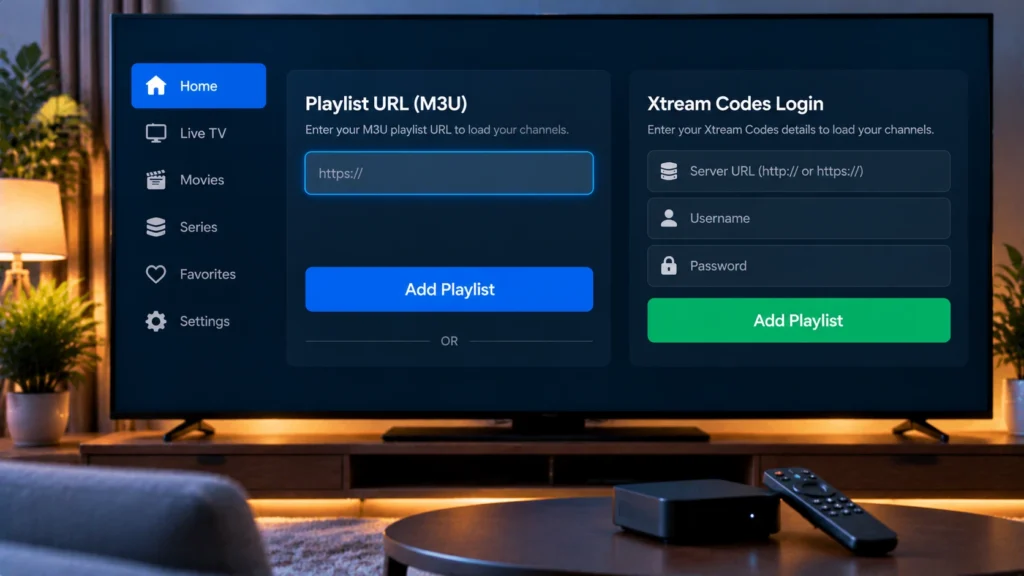
- Select the login type your provider uses — usually Xtream Codes (server URL, username and password). Some providers use a portal / MAC login instead, in which case you give your provider the MAC address shown on screen.
- Enter the details exactly as supplied, including http:// and any port number.
- Save, then wait for channels and the guide to load.
Unsure about login types? Our explainer on M3U and Xtream Codes covers them.
Built-in BuzzTV App vs TiviMate
| BuzzTV built-in player | TiviMate | |
|---|---|---|
| Setup | Pre-installed, designed for the remote | Install from Google Play or sideload |
| Interface | Cable-box style, works with remote shortcut keys | Highly customizable grid guide |
| Recording and catch-up | Supported on many models | Premium feature |
| Multiple providers | Supported | Premium feature |
| Best for | Users who want a plug-and-play cable feel | Users who want maximum control |
There is no wrong answer — many households keep both installed. If you want to try TiviMate, follow our TiviMate setup guide. For the full player landscape, see our best IPTV player comparison.
Recommended Settings
- Resolution: match your TV (4K for 4K TVs). Enable automatic frame rate switching if your model offers it, for smoother hockey.
- Buffer: choose a larger buffer in the player for live sports.
- Favourites: create a list with local news, TSN, Sportsnet and family channels. Our guide to TSN and Sportsnet feeds helps you pick the right regional feeds.
- Parental lock: set a PIN for adult or mature categories.
- Remote shortcut keys: assign your most-used channels or apps to the colour buttons if your remote supports it.
Troubleshooting BuzzTV
| Problem | Fix |
|---|---|
| Channels will not load after adding provider | Re-check the server URL, username and password; confirm the subscription is active with your provider. |
| Guide shows wrong times | Check the box’s time zone, then refresh the EPG. |
| Buffering on all channels | Use Ethernet, restart router and box, and test with Speedtest. See our buffering guide. |
| Box is slow | Clear app caches, uninstall unused apps, and restart weekly. |
| Remote not responding | Replace batteries, then re-pair the remote following your model’s manual. |
Is a BuzzTV Box Worth It?
BuzzTV boxes suit households that want a dedicated, cable-like IPTV experience with a proper remote and wired connection. They cost more than a Fire TV Stick, so if you only need IPTV on one TV and are comfortable with apps, a stick may be enough. We compare the options in our IPTV box guide, and you can read our in-depth BuzzTV box review for a closer look.
Get Started
StreamX works on BuzzTV boxes with Xtream Codes login, in the built-in player or TiviMate. Test it with a free trial, then pick your screens on the pricing page.
Frequently Asked Questions
Does a BuzzTV box come with channels?
No. BuzzTV makes the box and player app. You need a separate IPTV subscription to watch live channels.
How do I add IPTV to my BuzzTV box?
Open the built-in BuzzTV player, go to settings, add a provider or account, and enter your Xtream Codes server URL, username and password, or give your provider the box’s MAC address for portal login.
Can I install TiviMate on a BuzzTV box?
Yes. BuzzTV boxes run Android, so you can install TiviMate or IPTV Smarters Pro alongside the built-in player.
Why is the TV guide wrong on my BuzzTV?
The box’s time zone is usually set incorrectly. Fix it in system settings, then refresh the EPG.
Is a BuzzTV box better than a Firestick for IPTV?
A BuzzTV box offers a dedicated IPTV remote, Ethernet and a cable-like interface, while a Firestick is cheaper and more portable. Both work well with a good IPTV service.