
Written by the StreamX Editorial Team — Updated October 2026
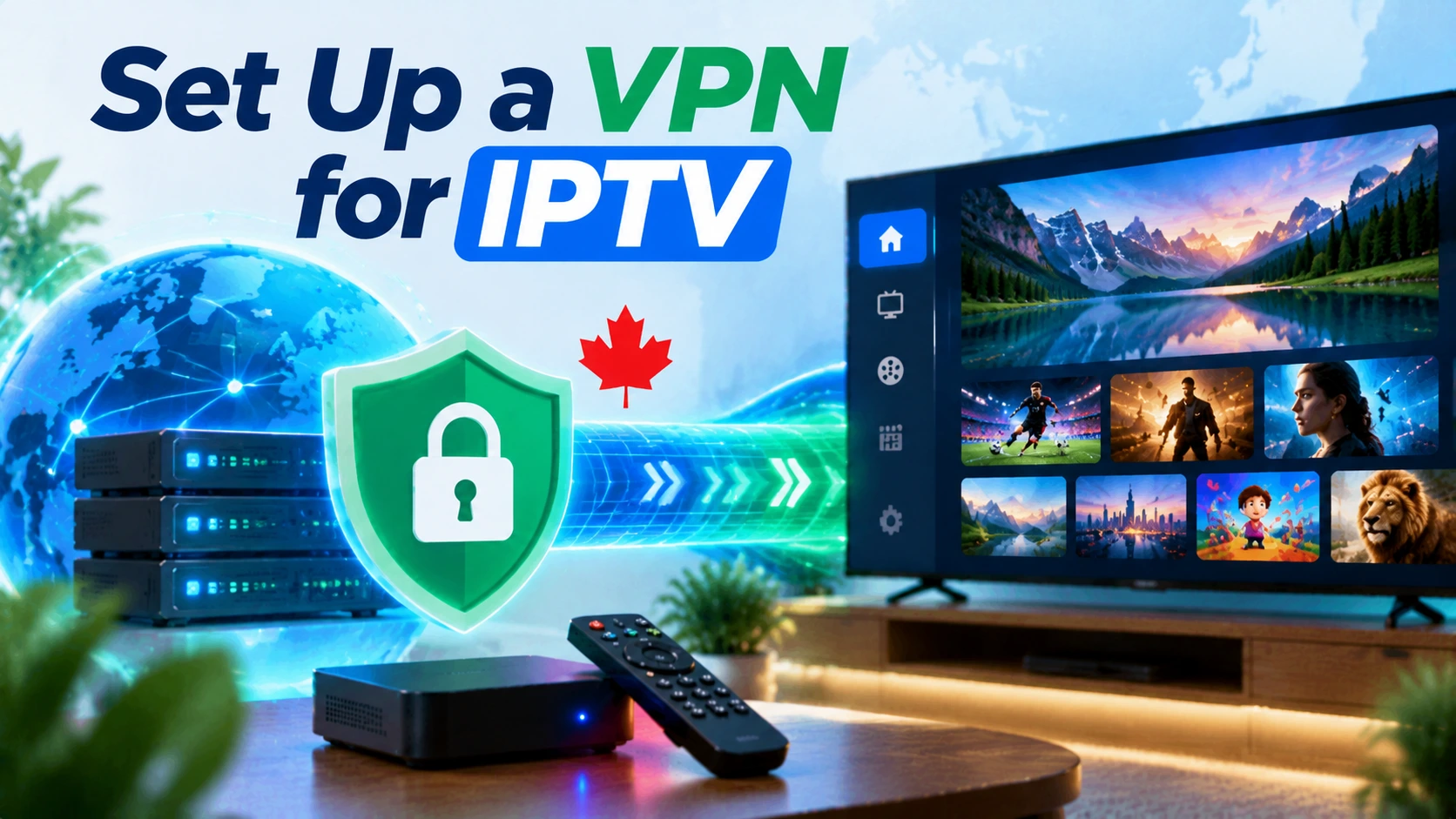
If you have decided a VPN makes sense for your household — for privacy, shared Wi-Fi or travel — setting it up properly makes the difference between invisible protection and a buffering nightmare. This guide walks through installing and configuring a VPN for IPTV on every common device in Canadian homes, the settings that keep HD and 4K streams smooth, and how to troubleshoot. Not sure you need one? Read our honest guide to VPNs for IPTV in Canada first.
Quick answer: Install your VPN provider’s app from the Amazon Appstore (Fire TV) or Google Play (Android TV), sign in, select a nearby Canadian server, set the protocol to WireGuard (or the provider’s WireGuard-based option), enable auto-connect on startup, then open your IPTV app. Test speed with and without the VPN. Apple TV supports VPN apps on tvOS 17 and later; for other devices, a VPN-capable router can protect the whole home.
Before You Start
- A subscription with a reputable VPN that has native TV apps.
- Your IPTV app already working without the VPN — so you know any problems are VPN-related. Need IPTV first? Try a free 24-hour trial.
- A baseline speed test on your TV device using Speedtest.
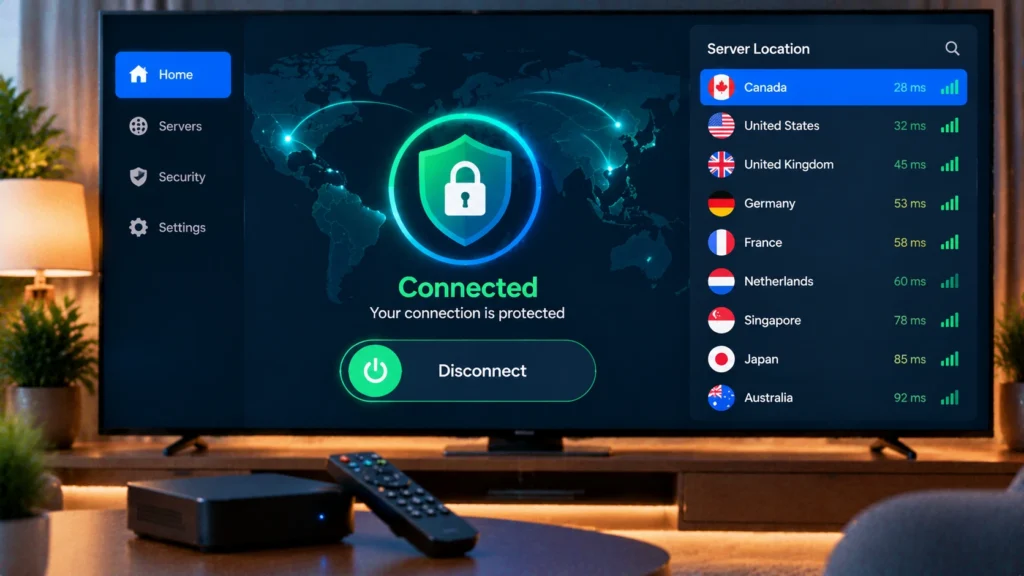
Fire TV Stick and Fire TV Cube
- From the home screen, search for your VPN provider’s name and install its app from the Amazon Appstore.
- Open the app and sign in (many apps let you sign in by scanning a code with your phone).
- Accept the connection request when Fire OS asks to allow a VPN.
- Open Settings in the VPN app: choose WireGuard or the provider’s fast protocol, and turn on connect on startup.
- Connect to the nearest Canadian city (Toronto, Montreal, Vancouver, Calgary, etc.).
- Open your IPTV player and test a live channel.
Note: VPN apps on Vega OS Fire TV Sticks depend on Appstore availability; Fire OS models such as the 4K Max work with all major VPN apps. See our best Firestick guide.
Android TV and Google TV
- Install the VPN app from Google Play.
- Sign in and allow the VPN connection.
- Select WireGuard and a nearby Canadian server.
- Enable split tunnelling if available, and choose to route only your IPTV app (or exclude Netflix and other apps that do not need it).
- Turn on auto-connect, then test your IPTV player.
For general Android TV setup, see our Android TV box guide.
Apple TV, iPhone and iPad
Apple TV supports VPN apps from tvOS 17 onward. Install your provider’s tvOS app from the App Store if available, sign in and connect. On iPhone and iPad, VPN apps are widely available — install, sign in, allow the VPN profile and connect. See our guides to IPTV on Apple TV and IPTV on iPhone.
Samsung, LG and Roku TVs
Most smart TVs and Roku devices cannot run VPN apps. Your options are:
- Use a VPN-capable router so every device in the home is covered.
- Plug in a Fire TV or Android TV device that runs the VPN app.
Router-Level VPN (Whole Home)
Many routers support WireGuard or OpenVPN client mode, either natively or with alternative firmware. Router setups protect every device but add complexity:
- Your router needs enough processing power to encrypt traffic at full speed — older ISP routers often cannot.
- Everything in the house goes through the VPN unless you configure policy-based routing.
- Follow your VPN provider’s router instructions for your specific model.
Settings That Keep Streams Smooth
| Setting | Recommendation |
|---|---|
| Protocol | WireGuard or provider equivalent (fastest) |
| Server | Nearest Canadian city |
| Kill switch | Optional; can interrupt streams on network hiccups |
| Split tunnelling | Route only the apps you want through the VPN |
| Auto-connect | On, so the VPN is active when the device starts |
| Threat protection / ad blocking | Off if it interferes with your IPTV app |
Troubleshooting
- Streams buffer only with VPN on: switch to a closer server or a different protocol.
- IPTV app will not log in: try another server, or exclude the IPTV app via split tunnelling.
- Big speed drop: your router or device may be too slow for encryption; use WireGuard and test on a wired connection.
- VPN disconnects overnight: enable auto-reconnect and disable battery or memory optimization for the VPN app.
Still buffering? Work through our IPTV buffering guide and our internet speed guide.
Use VPNs Responsibly
VPNs are legal in Canada and widely used for privacy. They should not be used to get around court-ordered blocking or a service’s terms. For context, see our guide to licensed vs unlicensed IPTV (general information, not legal advice).
Ready to stream? Choose a plan from StreamX on our pricing page.
Frequently Asked Questions
How do I set up a VPN for IPTV on a Firestick?
Install your VPN provider’s app from the Amazon Appstore, sign in, allow the VPN connection, choose WireGuard and a nearby Canadian server, enable auto-connect, then open your IPTV app.
Which VPN server should I use for IPTV in Canada?
Use the closest Canadian city to you, such as Toronto, Montreal, Vancouver or Calgary, for the lowest latency and best speed.
Can I use a VPN on a Samsung or LG TV?
Most smart TVs cannot run VPN apps. Use a VPN-capable router or a streaming device like a Fire TV or Android TV box that runs the VPN app.
Why does IPTV buffer when my VPN is on?
The VPN server may be far away or overloaded, or your device may be slow at encryption. Try a closer server and the WireGuard protocol.
Is it legal to use a VPN in Canada?
Yes, VPNs are legal in Canada. They should not be used to bypass court-ordered blocking or break a service’s terms.