
Written by the StreamX Editorial Team — Updated October 2026
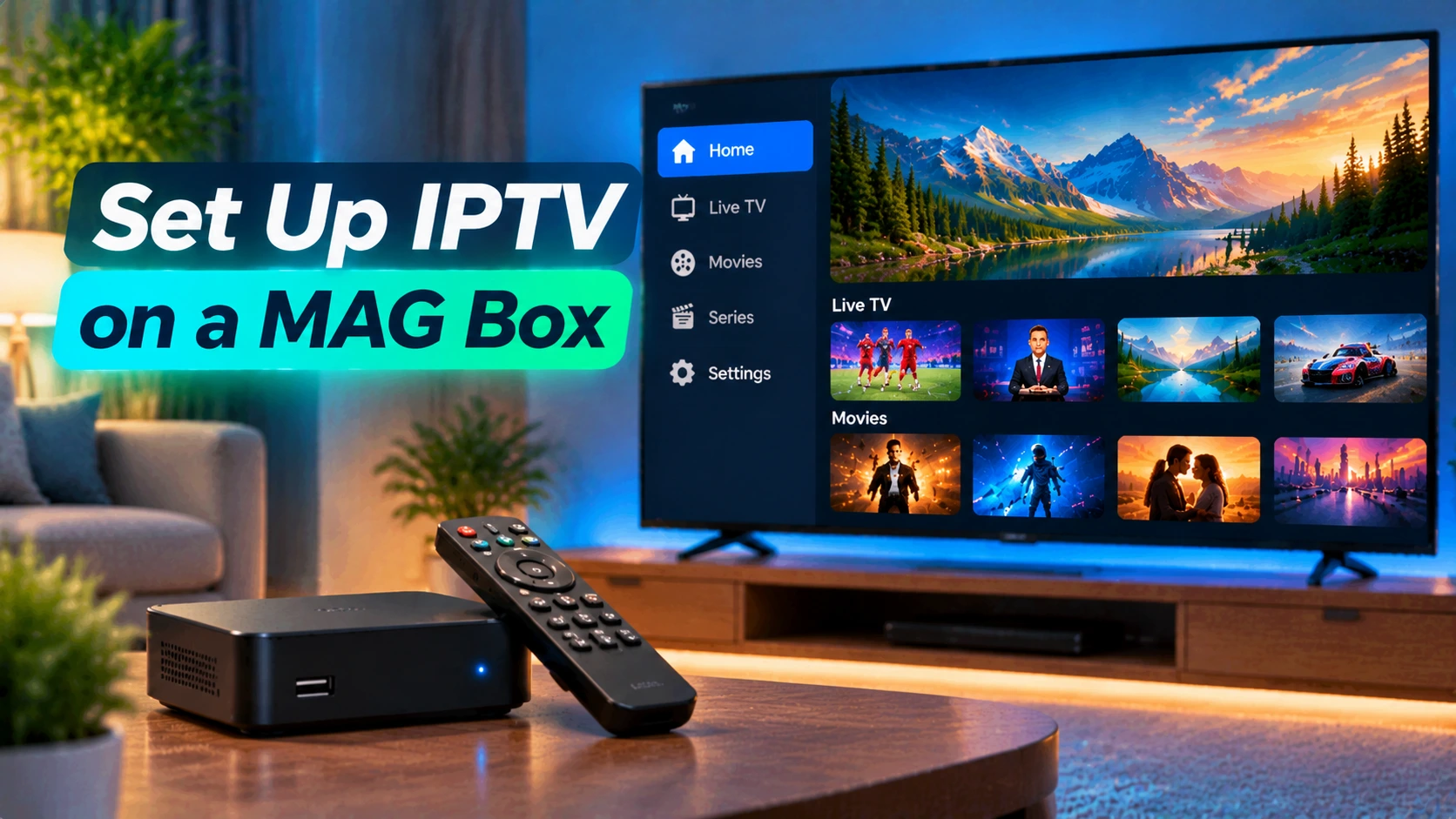
MAG boxes from Infomir were some of the first purpose-built IPTV set-top boxes, and many Canadian homes still use them. They are simple, reliable and controlled with a cable-style remote, but setup works differently from app-based devices: instead of typing a username and password, your box is identified by its MAC address and connects to your provider’s “portal”. This guide explains exactly how that works, walks you through portal setup, and covers the errors people see most often.
Quick answer: Find your MAG box’s MAC address (printed on the label under the box, starting with 00:1A:79), send it to your IPTV provider, then go to Settings > System settings > Servers > Portals, enter a portal name and the portal URL your provider gives you, save and reboot. The box will load your channels and TV guide automatically.
How MAG Boxes Work
A MAG box does not use apps like IPTV Smarters or TiviMate. Instead, it runs a built-in middleware interface that connects to a server called a portal. Your provider registers your box’s unique MAC address on their system, so the portal recognizes your device and delivers your channels, guide and on-demand content. That is why the MAC address is so important — if it is entered incorrectly on the provider’s side, nothing will load.
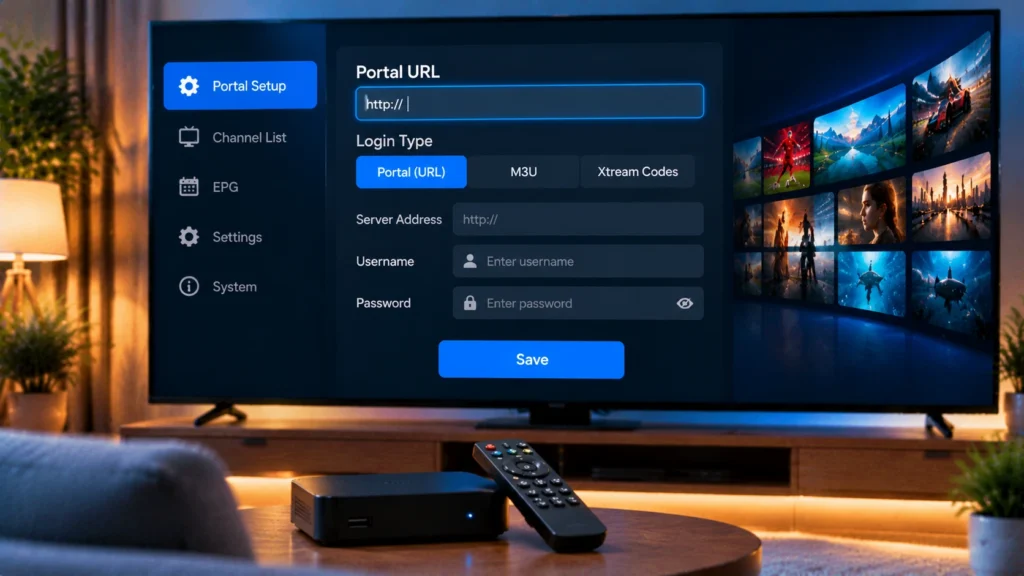
This is different from Xtream Codes or M3U logins used on Firestick and Android boxes. Our explainer on M3U and Xtream Codes covers those formats if you are comparing devices.
Common MAG Models
| Model | Max resolution | Notes |
|---|---|---|
| MAG 322 / 324 | Full HD | Older, still common; fine for HD channels |
| MAG 420 / 424 | 4K | Faster interface, 4K support |
| MAG 520 / 524 | 4K HDR | Current-generation performance |
| MAG 540 and newer | 4K HDR | Android-based options from Infomir |
For model details and firmware, see the manufacturer’s site at Infomir.
Step 1: Find Your MAC Address
- On the box: check the label underneath. MAG MAC addresses start with 00:1A:79.
- On screen: go to Settings > System information (or Status) to see it.
Send the full MAC address to your provider and wait for confirmation that it has been activated. Double-check every character — mixing up 0 and O or 1 and I is the most common mistake.
Step 2: Add the Portal URL
- Connect the MAG box to your TV and router (Ethernet strongly recommended).
- Press Setup/Set on the remote, or open Settings from the main menu.
- Go to System settings > Servers > Portals.
- In Portal 1 name, type a name such as “StreamX”.
- In Portal 1 URL, type the portal address your provider gave you, exactly as written (including http:// and any trailing /c/ or port).
- Press OK to save, go back, and choose Restart portal or reboot the box.
Step 3: Set Time Zone and Video Output
- Time zone: Settings > System settings > Servers > General (or Time). Pick your Canadian time zone and set the NTP server to the default so the guide shows correct times.
- Video: Settings > System settings > Video. Choose the resolution that matches your TV and enable automatic frame rate if available.
- Network: if you must use Wi-Fi, add a compatible Wi-Fi adapter and connect to the 5 GHz band.
Using Your MAG Box Day to Day
- TV guide: press the EPG button for a full grid.
- Favourites: mark channels with the Fav button and switch to the favourites list for quick access. Start with your regional sports feeds — see our TSN and Sportsnet guide.
- On-demand: movies and series appear in separate sections if your provider includes them.
- Parental control: lock categories with a PIN in the portal settings.
Troubleshooting MAG Portal Errors
| Error | Likely cause | Fix |
|---|---|---|
| “Loading portal…” forever | Wrong URL or no internet | Re-enter the portal URL exactly; check the network cable |
| “STB blocked” or “Your STB is not authorized” | MAC not activated or typed incorrectly by the provider | Confirm the MAC with your provider |
| “Portal not available” | Server down or URL changed | Contact your provider for the current URL |
| Guide times wrong | Time zone or NTP not set | Set the correct time zone and reboot |
| Buffering on many channels | Network or Wi-Fi issue | Use Ethernet, restart the router, test with Speedtest |
For more network fixes, see our guide to fixing IPTV buffering.
Is It Time to Upgrade?
MAG boxes are dependable, but older models are slow and limited to HD. If your box struggles, consider an Android-based device that supports both portal and Xtream logins, such as a Formuler or BuzzTV box, or a simple Fire TV Stick. See our Formuler setup guide, our BuzzTV setup guide and our IPTV box comparison. Want MAG-style portal login on Android? Our STB Emu guide shows how.
Get Started
StreamX supports MAG boxes via portal login as well as app-based devices. Request a free trial and mention you are using a MAG box with its MAC address, then choose your plan on the pricing page.
Frequently Asked Questions
How do I set up IPTV on a MAG box?
Send your box’s MAC address to your provider, then go to Settings, System settings, Servers, Portals, enter a portal name and the portal URL from your provider, save and restart.
Where is the MAC address on a MAG box?
It is printed on the label under the box and shown in the system information screen. MAG MAC addresses start with 00:1A:79.
Why is my MAG box stuck on loading portal?
Usually the portal URL is wrong or the box has no internet connection. Re-enter the URL exactly and check your network cable.
What does STB blocked mean on a MAG box?
Your MAC address has not been activated by the provider or was entered incorrectly. Contact your provider to confirm it.
Can I use IPTV Smarters or TiviMate on a MAG box?
Classic MAG boxes do not run Android apps. Use the portal interface, or switch to an Android-based device for app-based players.