
Written by the IPTVCND Editorial Team — Updated October 2026
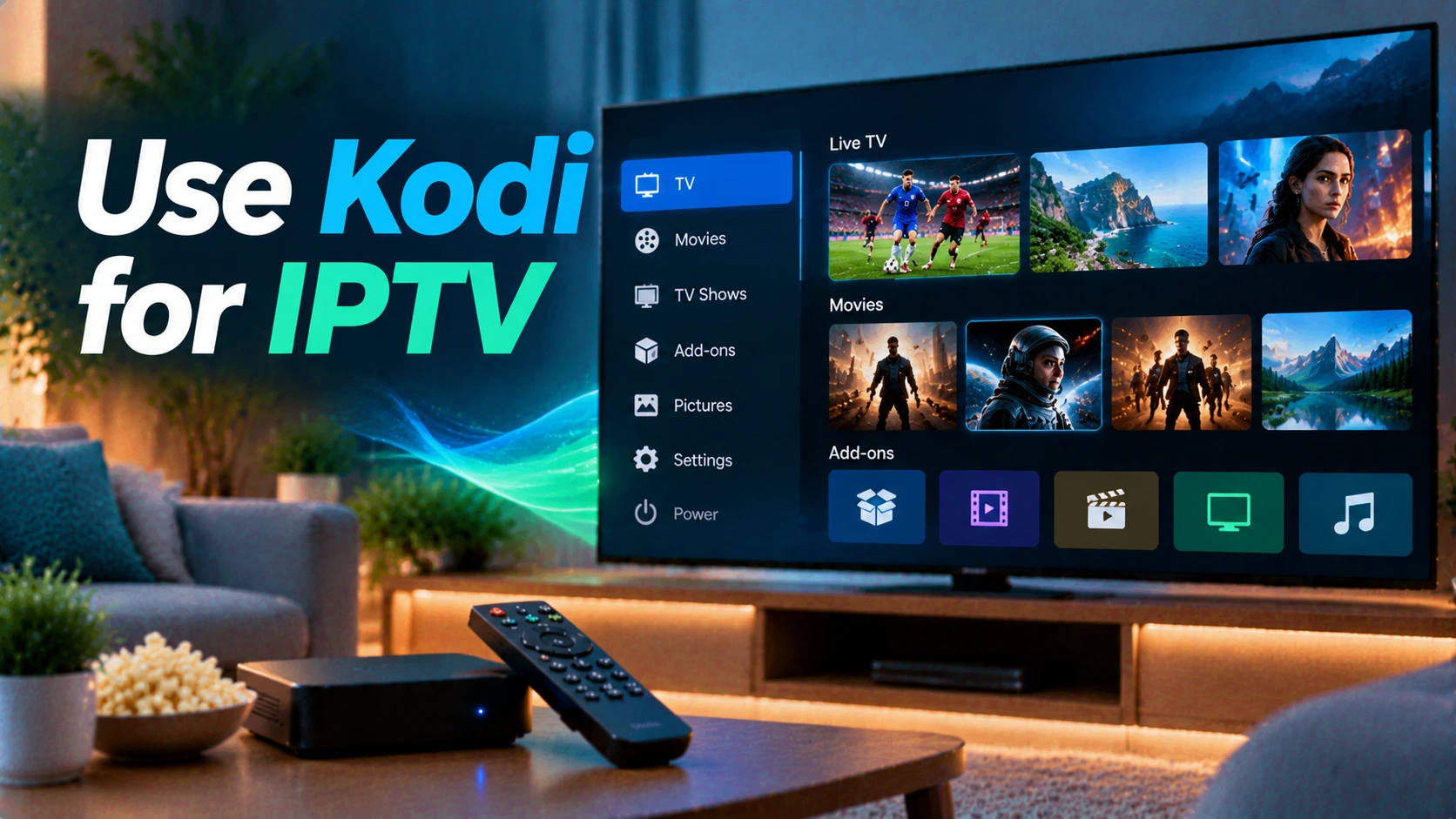
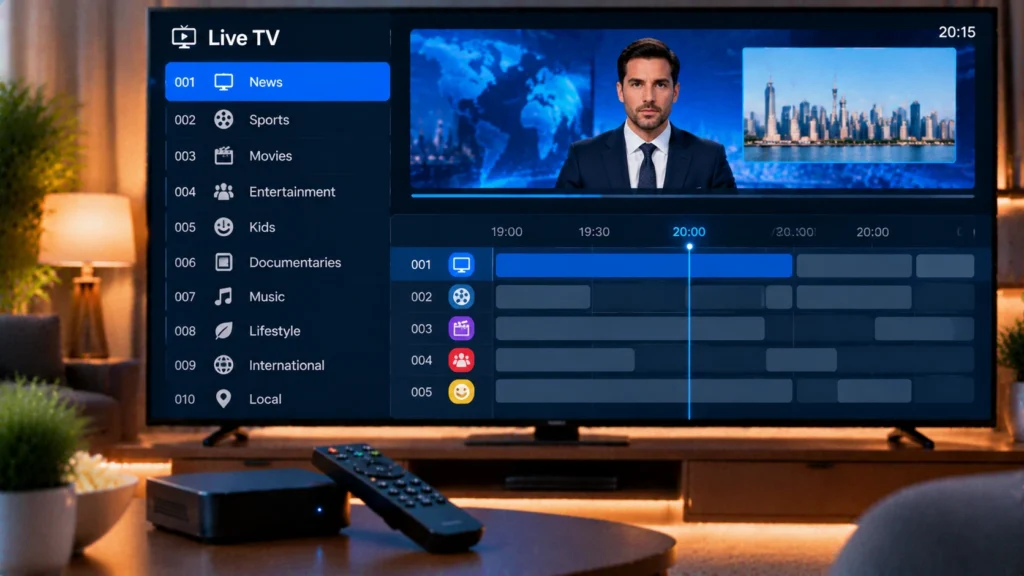
Kodi is a free, open-source media centre that runs on almost everything: Fire TV, Android TV, Windows, Mac, Linux and even a Raspberry Pi. With its official PVR IPTV Simple Client add-on, Kodi becomes a full live-TV player with a channel list and TV guide — perfect if you already use Kodi for your own movie library and want IPTV in the same place. This guide shows you how to install Kodi safely, set up IPTV step by step and avoid the pitfalls that give Kodi a bad name.
Quick answer: Install Kodi from kodi.tv or Google Play, go to Add-ons > Install from repository > PVR clients > PVR IPTV Simple Client, install and configure it with your provider’s M3U playlist URL and EPG (XMLTV) URL, enable it, then restart Kodi. Your channels appear under TV in the main menu. Avoid unofficial third-party add-ons and “builds”.
Is Kodi Good for IPTV?
| Pros | Cons |
|---|---|
| Free and open source | More setup than IPTV Smarters or TiviMate |
| Runs on almost every platform | Interface can feel heavy on low-power sticks |
| Combines IPTV with your own media library | Uses M3U rather than Xtream login in the basic client |
| Highly customizable skins and settings | Reputation harmed by unofficial piracy add-ons |
If you just want the simplest IPTV experience, see our best IPTV player guide. If you love customization or already use Kodi, read on.
Step 1: Install Kodi
- Android TV / Google TV / Android phones: install Kodi from Google Play.
- Windows: install from the Microsoft Store or kodi.tv.
- Mac and Linux: download from kodi.tv.
- Fire TV (Fire OS models): sideload using the Downloader app with the official download from kodi.tv — the process is the same as in our Firestick IPTV guide. Vega OS sticks such as the Fire TV Stick 4K Select cannot sideload Kodi.
Step 2: Install PVR IPTV Simple Client
- Open Kodi and go to Add-ons.
- Select Install from repository (or the open-box icon > Install from repository).
- Choose Kodi Add-on repository > PVR clients.
- Select PVR IPTV Simple Client and click Install.
This is an official add-on maintained by the Kodi team.
Step 3: Configure Your IPTV Playlist
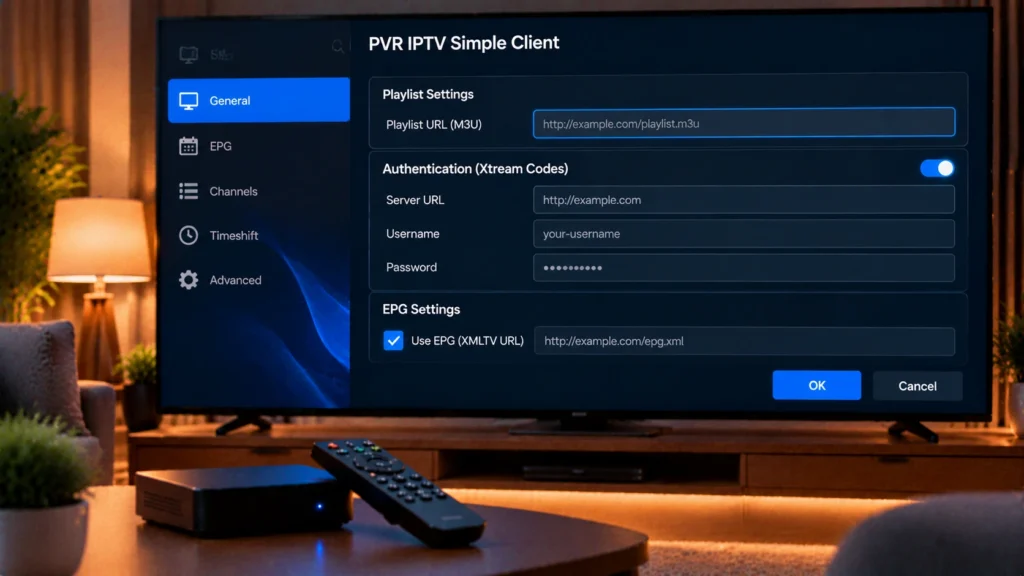
- Go to Add-ons > My add-ons > PVR clients > PVR IPTV Simple Client and choose Configure.
- Under General, set Location to Remote path (Internet address).
- Paste your provider’s M3U playlist URL.
- Leave “Cache M3U at local storage” on for faster startup.
Not sure where to find your M3U link? Our guide to M3U and Xtream Codes explains it.
Step 4: Add the TV Guide (EPG)
- In the same Configure screen, open the EPG tab.
- Set Location to Remote path and paste your provider’s XMLTV EPG URL.
- If programme times are off, adjust the EPG time shift.
- Click OK, then Enable the add-on and restart Kodi.
More on guide accuracy in our EPG guide for Canada.
Step 5: Watch and Organize
- Open TV from Kodi’s main menu to see channels and the guide.
- Create channel groups for favourites like Sports, News and Kids.
- Hide channels you never watch in the Channel manager.
- Use Settings > Player to adjust video and audio for your TV.
Safety: Stick to Official Add-ons
Kodi itself is legal and safe. The risks come from unofficial “builds” and third-party add-ons promising free movies and sports. These can carry malware, break frequently and give access to unlicensed content. The Kodi team itself warns users about unofficial add-ons on kodi.tv. Use the official repository, and get your IPTV from a provider you have vetted with our provider checklist.
Troubleshooting Kodi IPTV
| Problem | Fix |
|---|---|
| “No PVR add-on enabled” | Enable PVR IPTV Simple Client in My add-ons |
| Channels do not appear | Check the M3U URL, then restart Kodi; clear data in Settings > PVR & Live TV |
| Guide is empty | Add the XMLTV EPG URL and wait for it to load |
| Buffering | Increase cache settings in advanced settings, use Ethernet, see our buffering guide |
| Slow on Firestick | Use a lighter skin, or switch to a dedicated IPTV player |
Get Started
StreamX provides M3U and EPG links that work in Kodi, along with Xtream Codes for other apps. Try it with a free 24-hour trial and see plans on our pricing page. Prefer something simpler? Our VLC guide and TiviMate guide cover alternatives.
Frequently Asked Questions
Can I watch IPTV on Kodi?
Yes. Install the official PVR IPTV Simple Client add-on and configure it with your provider’s M3U playlist URL and EPG link.
Is Kodi legal in Canada?
Kodi is legal open-source software. Legal issues come from unofficial third-party add-ons that provide unlicensed content.
Where do I enter my M3U link in Kodi?
In Add-ons, My add-ons, PVR clients, PVR IPTV Simple Client, Configure, General tab, set Location to Remote path and paste the M3U URL.
How do I add a TV guide to Kodi IPTV?
Open the EPG tab in PVR IPTV Simple Client settings, choose Remote path and paste your provider’s XMLTV EPG URL.
Can I install Kodi on any Firestick?
Fire OS models like the Fire TV Stick 4K Max can sideload Kodi. Vega OS models such as the Fire TV Stick 4K Select cannot.