
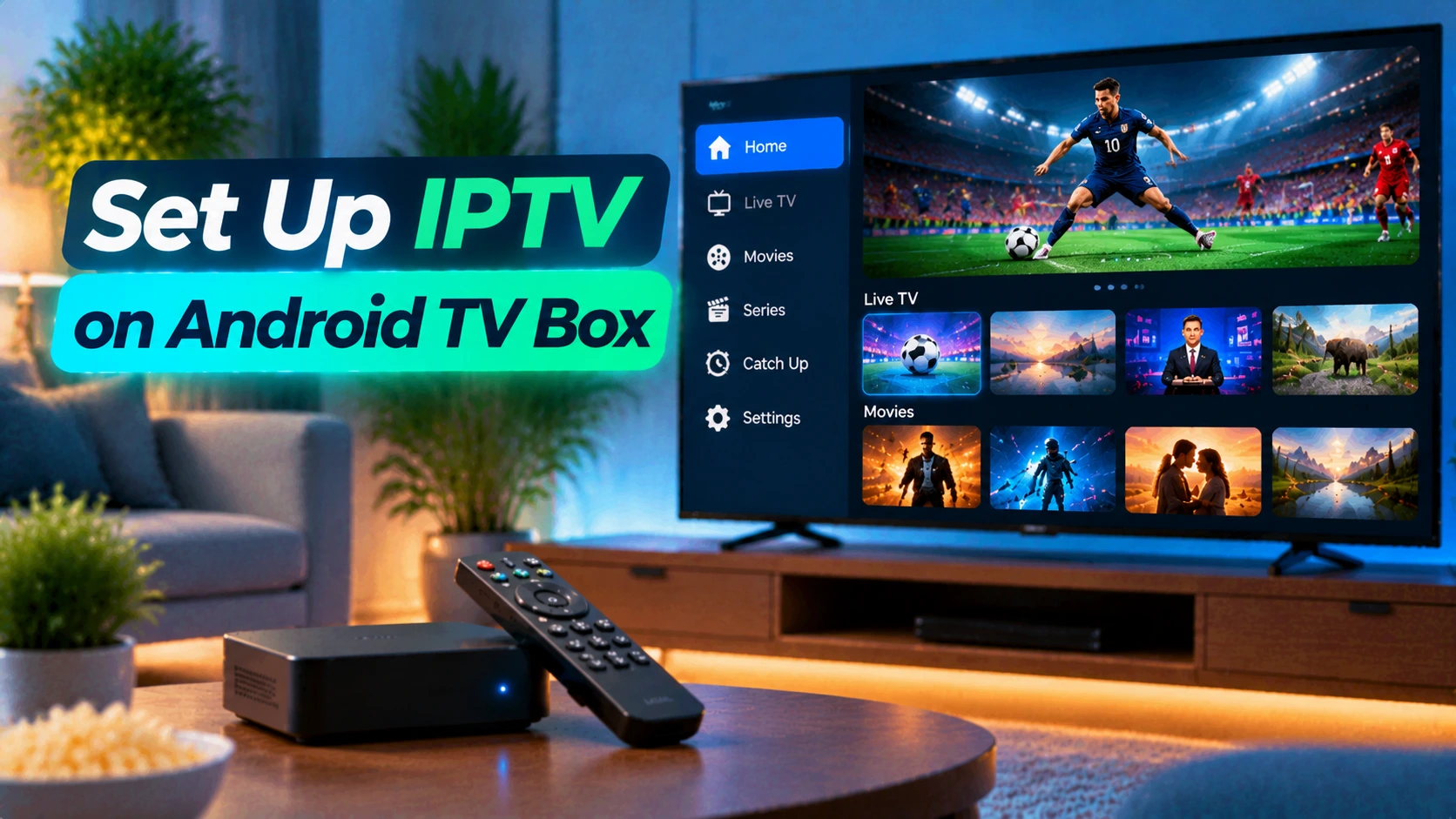
Written by the StreamX Editorial Team — Updated October 2026
An Android TV box is the most flexible way to watch IPTV in Canada. It runs every major IPTV player — including TiviMate, which is not available on Samsung, LG or Apple devices — it usually has an Ethernet port for rock-solid live sports, and it turns any TV with an HDMI port into a smart TV. But not all Android boxes are equal, and the cheap no-name boxes sold online come with real risks. This guide covers how to pick a safe box, set it up from first boot, install the best IPTV player and tune the settings that make the biggest difference.
Quick answer: Choose a Google-certified Android TV or Google TV box, connect it by Ethernet if possible, sign in with a Google account and install all system updates. Then install an IPTV player such as TiviMate or IPTV Smarters Pro from the Google Play Store, log in with your provider’s Xtream Codes details, and set the buffer to Large for live sports. The whole process takes about 20 minutes.
Certified vs Uncertified Boxes: Why It Matters
There are two very different kinds of “Android boxes” on the market:
| Certified Android TV / Google TV | Uncertified “Android” boxes | |
|---|---|---|
| Operating system | Official Android TV or Google TV from Google | Modified open-source Android, often outdated |
| Google Play Store | Official, with automatic app updates | Missing or unofficial |
| Security updates | Regular from the manufacturer | Rare or never |
| Netflix, YouTube, Crave in HD/4K | Yes | Often limited to SD or unavailable |
| Malware risk | Low | Higher — some cheap boxes have shipped with pre-installed malware |
You can check whether a device is certified on Google’s Play Protect certified devices page. A certified box costs a little more up front but is safer, faster and supported for years. Our IPTV box guide compares the popular options available in Canada.
Which Android Box Should You Use?
- Nvidia Shield TV / Shield TV Pro: the performance benchmark, with long software support and excellent upscaling. Ideal for a main TV.
- Google TV Streamer and Chromecast with Google TV: clean interface, easy setup, good value.
- Xiaomi Mi Box / TV Box S: affordable certified option for secondary TVs.
- IPTV-focused Android boxes such as Formuler and BuzzTV models: built with IPTV in mind, often with dedicated remotes and their own player apps.
Still deciding between a box and a stick? See our comparison of Firestick vs Android box for IPTV.
Step 1: First-Boot Setup
- Connect the box to your TV with HDMI and plug in power. Use the HDMI port labelled ARC/eARC only if you also want to control a soundbar.
- Connect to the internet. Ethernet is strongly recommended for live sports. If you must use Wi-Fi, choose the 5 GHz network.
- Sign in with a Google account. You can use your phone to speed this up when prompted.
- Install system updates: Settings > Device Preferences > About > System update. Repeat until no updates remain.
- Update apps: open the Play Store and update everything.
Step 2: Install an IPTV Player
Your IPTV subscription supplies the channels; the player app organizes and plays them. The two most popular players in Canada are:
- TiviMate — cable-style grid guide, fast channel switching and powerful Premium features. Follow our TiviMate setup guide.
- IPTV Smarters Pro — simple, beginner-friendly, with live TV, movies and series in one place.
Both can be installed from the Google Play Store on most certified boxes. Compare them in detail in IPTV Smarters Pro vs TiviMate, or see our best IPTV player ranking.
Step 3: Log In With Your IPTV Account
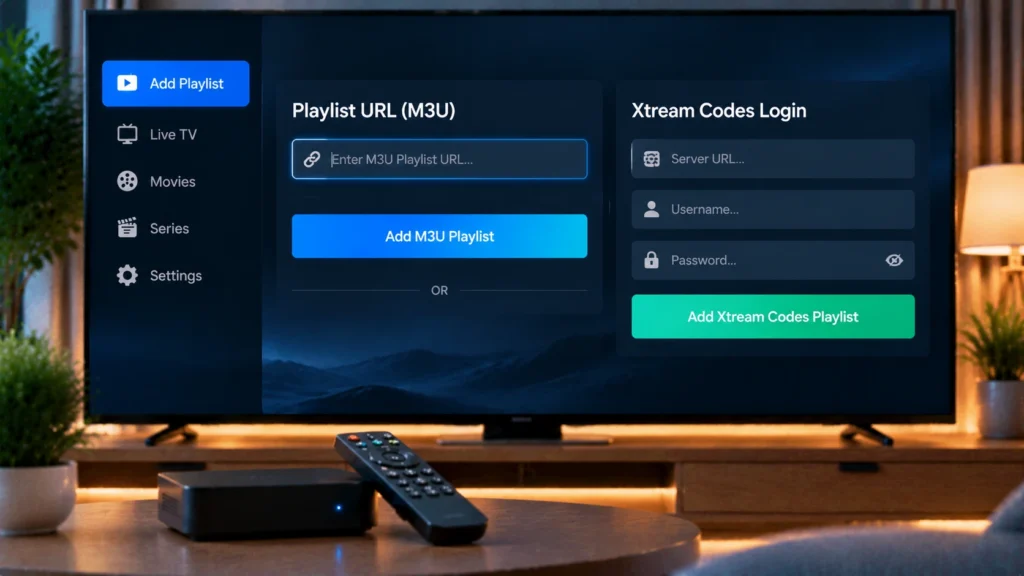
- Open your player and choose Add playlist or Login with Xtream Codes API.
- Enter the server URL, username and password from your provider’s welcome email.
- Name the playlist (for example “StreamX”) and confirm.
- Wait for channels, the TV guide and on-demand content to load — usually one to three minutes.
If your provider sent an M3U link instead, choose the M3U option and paste it. Our guide to M3U and Xtream Codes explains the difference. Don’t have a subscription yet? Start with a free 24-hour trial.
Step 4: Settings That Make a Real Difference
| Setting | Where to find it | Recommendation |
|---|---|---|
| Display resolution | Settings > Device Preferences > Display & Sound | Match your TV (4K at 60 Hz for 4K TVs) |
| Match frame rate | Display & Sound > Advanced | Set to “Seamless only” or “Always” for smoother sports |
| Player buffer | Inside the IPTV app | Large for live sports |
| Screen saver / sleep | Device Preferences > Screen saver | Extend so it does not interrupt long games |
| Unused apps | Settings > Apps | Disable pre-installed apps you never use to free memory |
| Storage | Settings > Storage | Keep at least 1–2 GB free; clear app caches if it fills up |
Step 5: Organize Your Channels
A big IPTV lineup is only useful if you can find what you want quickly. Spend ten minutes setting up:
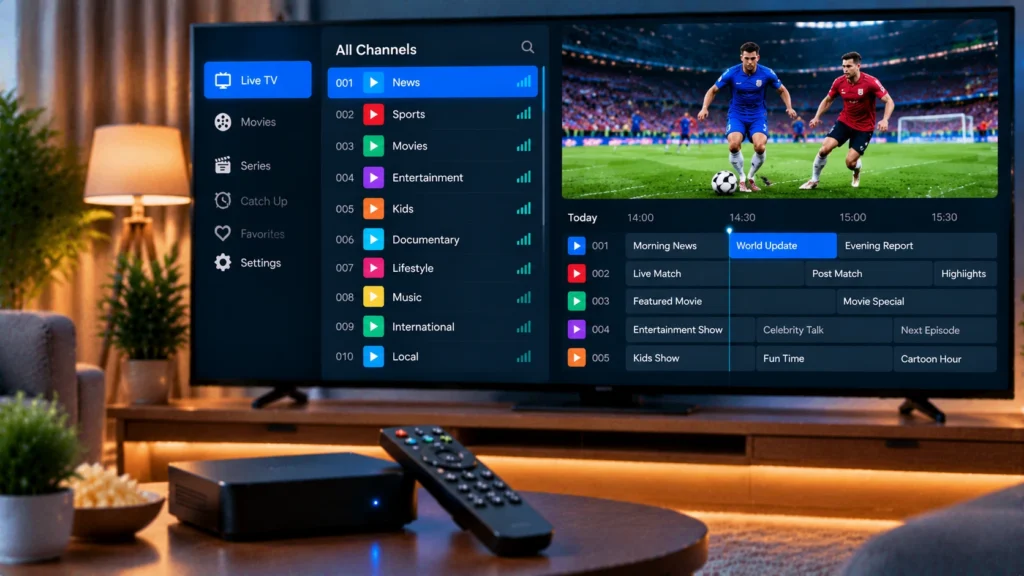
- A favourites list with your local news, TSN and Sportsnet feeds, and the family’s go-to channels. Our guide to TSN and Sportsnet feeds shows which feed carries your team.
- Hidden groups for countries and languages you never watch.
- Parental controls with a PIN for mature content.
Internet and Network Tips
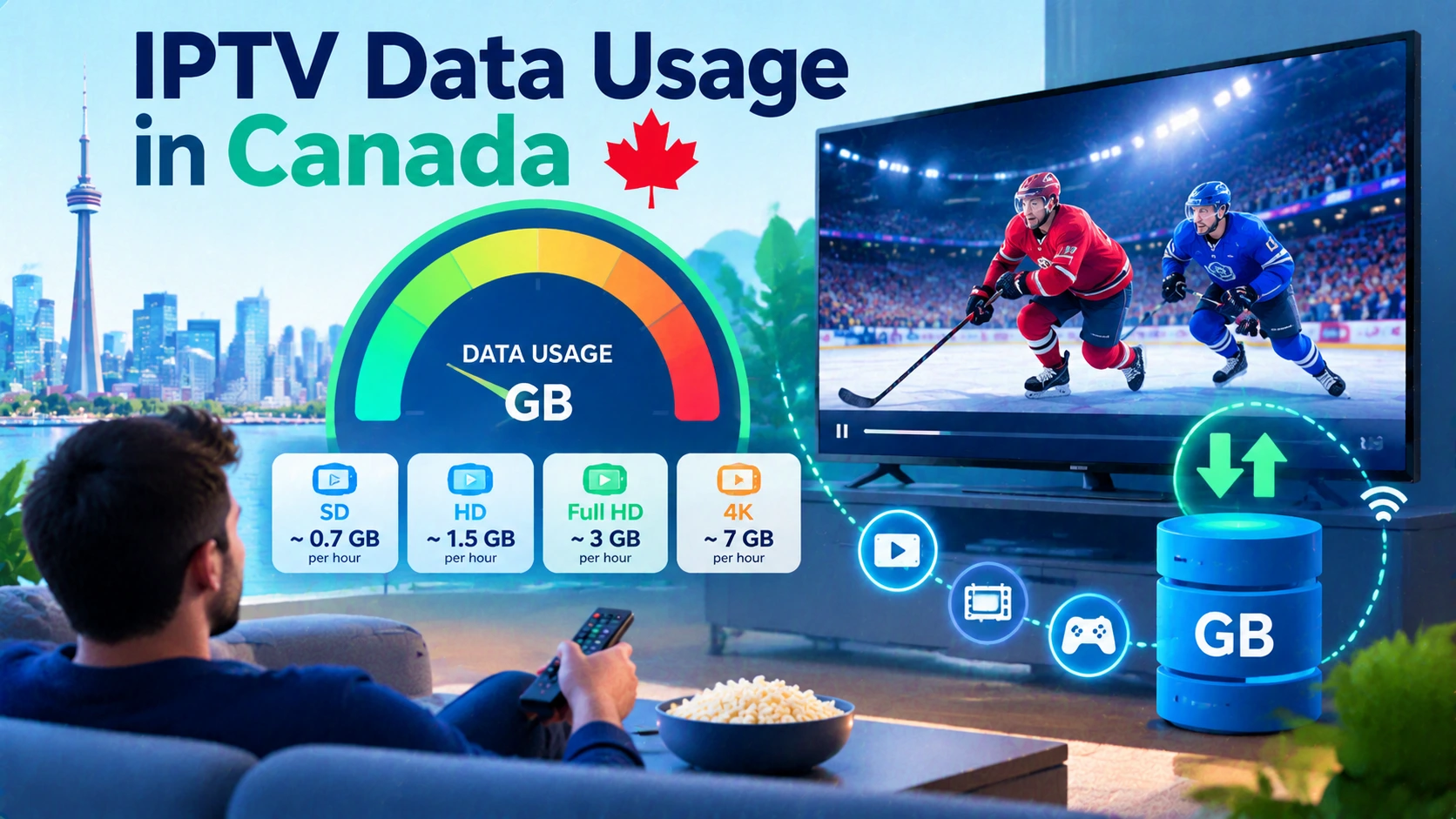
An Android box is only as good as the connection behind it. Plan for about 15 Mbps per HD stream and 25 Mbps or more for 4K, and test at peak time with Speedtest. If the box is far from the router, a mesh Wi-Fi system or a powerline adapter usually fixes buffering better than a faster internet plan.
Troubleshooting
- Channels buffer constantly: switch to Ethernet, restart the router and box, and check your speed during peak hours.
- Box feels slow: clear caches, uninstall unused apps and restart weekly.
- No sound on some channels: change the audio output format to PCM or Auto in Display & Sound.
- TV guide wrong by an hour: check the box’s time zone and the EPG time shift in your player.
- Player will not log in: re-enter the server URL exactly, including http:// and port number.
Ready to Stream
Every StreamX plan works on Android TV and Google TV boxes with TiviMate, Smarters and other mainstream players. Compare screen counts and terms on our pricing page, and browse the rest of our setup tutorials for other devices in your home.
Frequently Asked Questions
What is the best Android TV box for IPTV in Canada?
A Google-certified box such as the Nvidia Shield TV, Google TV Streamer or Xiaomi TV Box S is the safest choice. IPTV-focused boxes from brands like Formuler and BuzzTV are also popular.
Are cheap uncertified Android boxes safe?
They carry more risk. Uncertified boxes often run outdated Android without security updates, and some have shipped with pre-installed malware. Check Google’s Play Protect certified list before buying.
Which IPTV app should I install on an Android box?
TiviMate offers the most cable-like experience, while IPTV Smarters Pro is simpler for beginners. Both are available on certified Android TV boxes.
Do I need Ethernet for IPTV on an Android box?
It is not required, but a wired connection gives the most stable live sports streaming. If you use Wi-Fi, connect to the 5 GHz band and keep the box close to the router.
How much internet speed does an Android box need for IPTV?
Plan for about 15 Mbps per HD stream and 25 Mbps or more for each 4K stream.