
Written by the IPTVCND Editorial Team — Updated October 2026
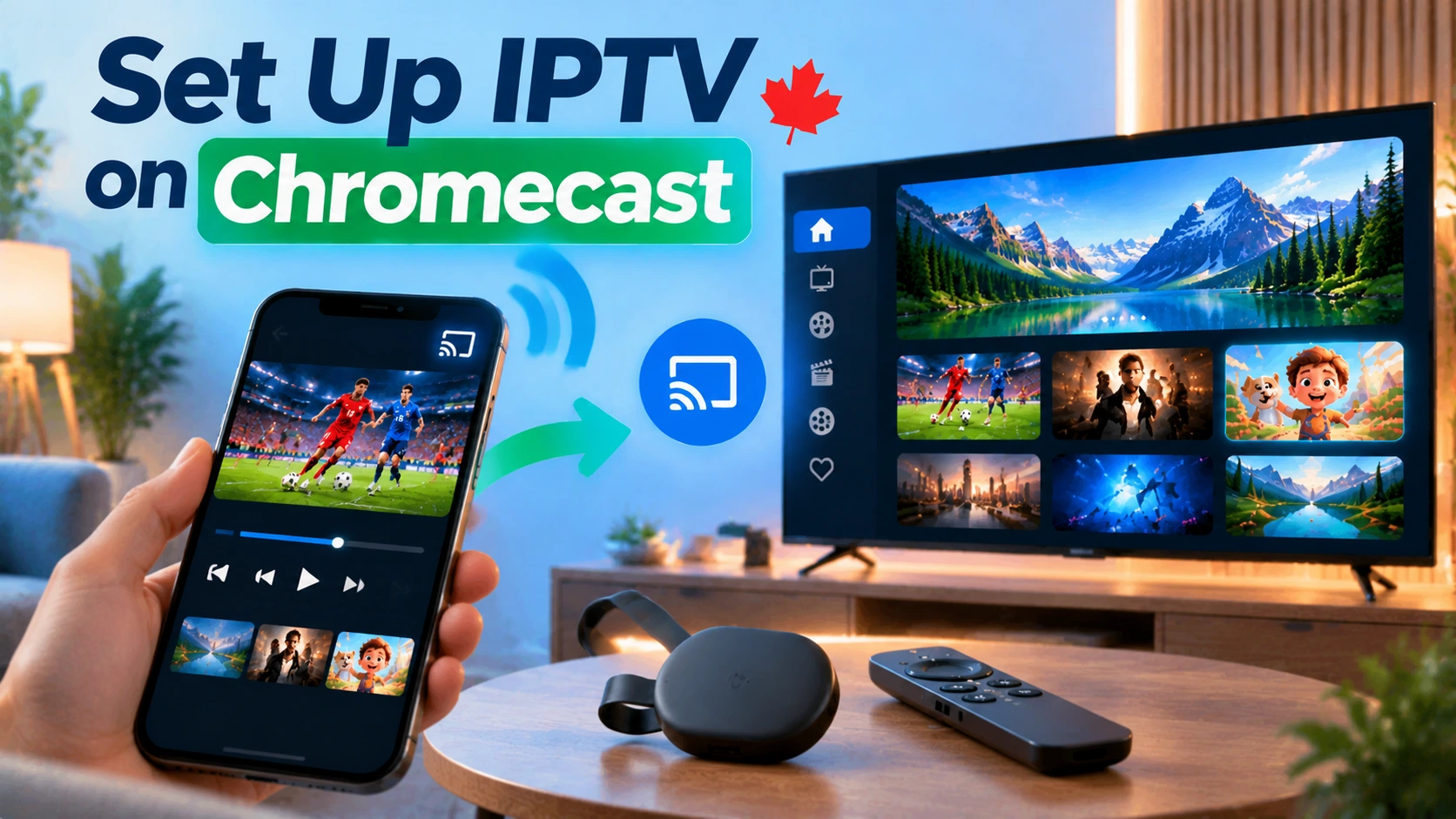
“Chromecast” covers several very different devices. The newer Chromecast with Google TV and its successor, the Google TV Streamer, are full Android TV devices with their own remote and app store — they run IPTV players just like an Android box. Older Chromecasts with no remote can only receive video “cast” from a phone or computer. This guide explains how IPTV works on each type, walks through configuration step by step, and covers how to restart and troubleshoot your Chromecast when streams misbehave.
Quick answer: On a Chromecast with Google TV or Google TV Streamer, install an IPTV player (such as TiviMate or IPTV Smarters Pro) from the Google Play Store and log in with your Xtream Codes details. On an older Chromecast without a remote, install a Cast-compatible IPTV app on your Android phone and tap the Cast icon to send channels to the TV. To restart any Chromecast, unplug it from power for 60 seconds, or on Google TV models go to Settings > System > Restart.
Which Chromecast Do You Have?
| Device | Has a remote? | Installs apps? | Best IPTV method |
|---|---|---|---|
| Google TV Streamer (2024) | Yes | Yes (Google Play) | Install a player directly |
| Chromecast with Google TV (4K or HD) | Yes | Yes (Google Play) | Install a player directly |
| Chromecast (1st–3rd gen), Chromecast Ultra | No | No | Cast from a phone or computer |
| TVs with Chromecast built-in (many Sony, TCL, Hisense) | Yes (TV remote) | Depends on the TV’s OS | Install a player if it is a Google TV set; otherwise cast |
Google stopped selling Chromecast with Google TV in 2024 and replaced it with the Google TV Streamer, but existing Chromecasts continue to receive support. See Google’s Chromecast Help Centre for model-specific details.
Chromecast Configuration: First-Time Setup
- Plug in the Chromecast to an HDMI port and to power using the included adapter — USB ports on many TVs do not supply enough power and cause random restarts.
- Install the Google Home app on your phone.
- Add the device: in Google Home, tap the + icon, choose “Set up device” and follow the prompts to connect it to your Wi-Fi.
- On Google TV models, sign in with your Google account and install system updates (Settings > System > About > System update).
- Use the 5 GHz Wi-Fi band if your router offers one, or add Google’s Ethernet power adapter for a wired connection.
Method 1: Install an IPTV Player (Chromecast with Google TV / Google TV Streamer)
- From the Google TV home screen, go to Apps and search for your IPTV player.
- Install TiviMate for a cable-style guide (see our TiviMate setup guide) or IPTV Smarters Pro for a simpler layout.
- Open the app and choose Xtream Codes login.
- Enter your server URL, username and password, then wait for channels and the guide to load.
- Build a favourites list with the channels you watch most.
Because these devices run full Google TV, everything in our Android TV box guide applies, including the best display and buffer settings.
Method 2: Cast From Your Phone (Older Chromecasts)
- Make sure your phone and Chromecast are on the same Wi-Fi network.
- Install an IPTV player on your Android phone that supports Google Cast. Some players have a built-in Cast button; others work through a Cast-enabled video player.
- Log in with your Xtream Codes details or M3U link.
- Start a channel and tap the Cast icon, then choose your Chromecast.
Limitations: not every IPTV app or stream format supports casting, channel switching happens on the phone, and some streams may fail to cast. If you watch daily, upgrading to a Google TV model or a Fire TV Stick is worth the cost.
On iPhone, Cast support depends on the app; AirPlay to an Apple TV or compatible TV is often easier — see our iPhone IPTV guide.
Method 3: Cast a Chrome Tab From a Computer
As a last resort, you can play IPTV in a browser-based player on a computer and cast the tab using Chrome’s menu (three dots > Cast). Quality and smoothness are usually worse than the other methods, so use it only for occasional viewing.
How to Restart a Chromecast
Restarting fixes most freezes, buffering spikes and app crashes. Here are the options, from gentlest to most drastic:
| Method | How | When to use |
|---|---|---|
| Restart from settings (Google TV models) | Settings > System > Restart | App freezes, sluggish menus |
| Restart from Google Home | Open the device in Google Home > Settings (gear) > three dots > Reboot | Older Chromecasts or when the remote is unresponsive |
| Power cycle | Unplug from power for 60 seconds, then reconnect | Any model, any problem |
| Factory reset | Hold the button on the device until the light changes, or use Settings > System > About > Factory reset | Only if nothing else works — you will need to set it up again |
Troubleshooting IPTV on Chromecast
- Random restarts: use the original power adapter instead of the TV’s USB port.
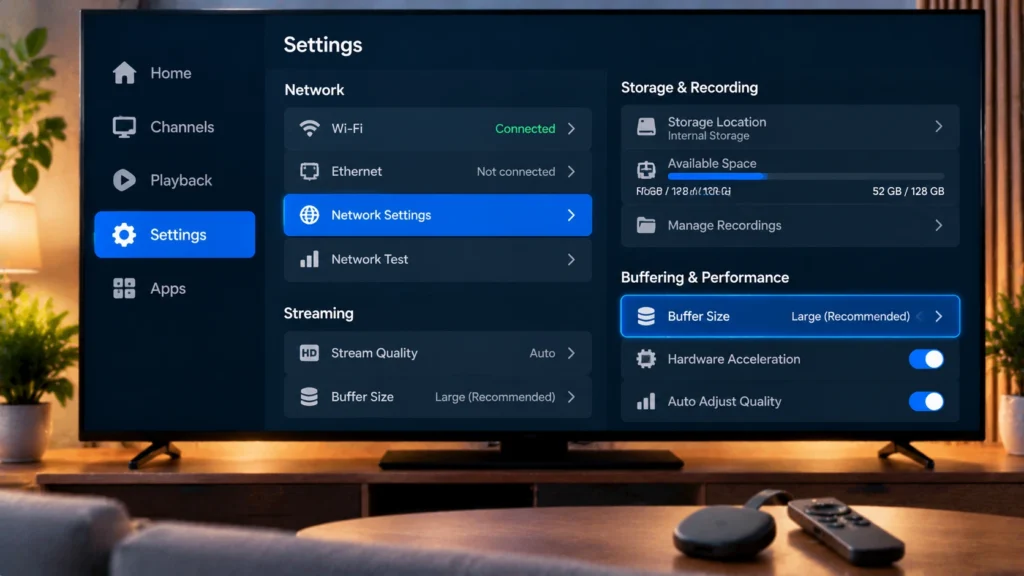
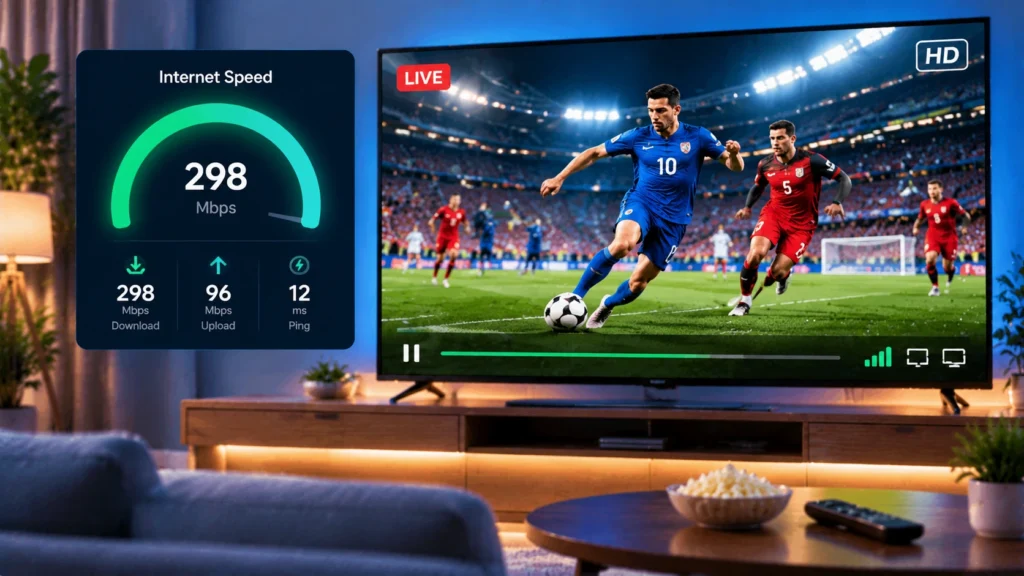
- Buffering: switch to 5 GHz Wi-Fi or add the Ethernet adapter, and test with Speedtest (about 15 Mbps per HD stream). See our IPTV buffering guide.
- Cast icon missing: check that the phone and Chromecast are on the same network and that the app supports casting.
- Storage full on Google TV: Chromecast with Google TV has limited storage, so clear caches (Settings > Apps) and remove unused apps.
- Login problems: re-enter the server URL exactly, including http:// and port.
Get Started
StreamX works on Chromecast with Google TV, Google TV Streamer and via casting from Android apps. Test it with a free 24-hour trial and choose your plan on the pricing page. Other devices? See all our setup tutorials or our best IPTV player comparison.
Frequently Asked Questions
Can I watch IPTV on Chromecast?
Yes. On Chromecast with Google TV or Google TV Streamer, install an IPTV player from Google Play. On older Chromecasts, cast IPTV from a compatible app on your phone.
Can I install TiviMate on Chromecast with Google TV?
Yes. Chromecast with Google TV runs full Google TV, so you can install TiviMate or IPTV Smarters Pro from the Google Play Store.
How do I restart my Chromecast?
On Google TV models, go to Settings, System, Restart. On any model, you can reboot from the Google Home app or unplug the power for 60 seconds.
Why does my Chromecast keep restarting?
The most common cause is insufficient power from a TV USB port. Use the original power adapter plugged into a wall outlet.
Is casting IPTV from my phone a good long-term option?
It works for occasional viewing, but channel switching and stream compatibility are limited. A Google TV device or Firestick is better for daily use.