
Written by the StreamX Editorial Team — Updated June 2026
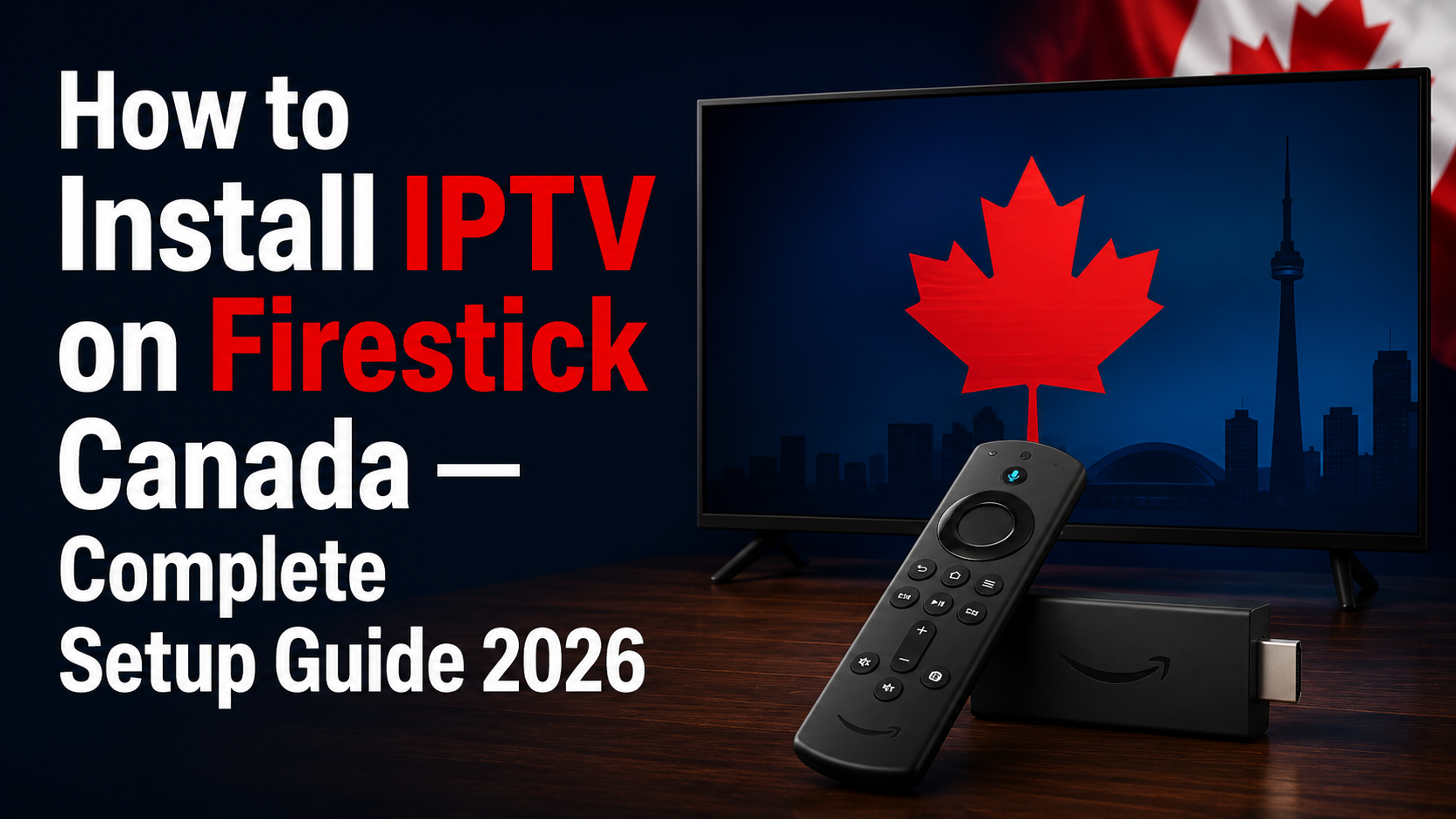
This guide covers exactly how to install iptv firestick canada users can rely on — from enabling sideloading to configuring credentials and setting up Canadian channels correctly. The full process takes about 10 minutes. Before the install steps, the guide answers the question most tutorials skip: which IPTV app should you actually install on your Firestick? Have your subscription credentials ready. If you do not have an iptv canada subscription yet, start with an iptv free trial first.
What You Need Before You Start
Gather these five things before starting the installation.
- Amazon Firestick — any model works. The Firestick 4K or Firestick 4K Max are recommended for HD and 4K streams. The Firestick Lite handles HD only. The Fire TV Cube works with identical setup steps.
- Internet connection — minimum 10 Mbps for HD, 25 Mbps for 4K. Most Canadian home internet plans from Bell, Rogers, Telus, or Videotron qualify. An Ethernet adapter is recommended for Bell and Rogers users to reduce throttling.
- IPTV subscription credentials — your provider sends these by email: Xtream Codes (Server URL + Username + Password) or an M3U URL. No subscription yet? Get an iptv free trial first.
- Downloader app — free, available in the Amazon Appstore. Install it before anything else — you need it to sideload IPTV apps.
- 10 minutes — that is all the full setup takes.
Step 1 — Which IPTV App Should You Install on Your Firestick?
Before installing anything, pick your media player. The two best options for Firestick users in Canada are IPTV Smarters Pro and TiviMate. Here is how to choose.
Choose IPTV Smarters Pro If…
You are setting up IPTV for the first time and want the easiest experience. Smarters Pro also works across all major platforms — iPhone, iPad, Windows PC — whereas TiviMate does not. It is completely free with no paid upgrade required, and many Canadian providers send setup instructions specifically for it. Best for: beginners, multi-device households, and iOS users.
For the complete Smarters Pro setup guide including all settings and troubleshooting, see our dedicated iptv smarters pro canada guide.
Choose TiviMate If…
You want the closest thing to a traditional cable TV guide on your Firestick — TiviMate’s EPG interface is the best of any iptv service. You watch a lot of live sports and want fast channel switching with a full programme guide showing TSN, Sportsnet, and NHL schedules. TiviMate Premium (~$4.99 USD/year) also unlocks recording to USB and multi-view. It takes five more minutes to configure than Smarters Pro but is the better long-term choice for sports watchers. Best for: live TV and sports users, experienced users, anyone wanting a cable-replacement feel.
The steps below cover both apps. Follow Steps 2–3 for sideloading (identical for both), then go to Step 4a for Smarters Pro or Step 4b for TiviMate.
Step 2 — Enable Sideloading on Your Firestick
Neither IPTV Smarters Pro nor TiviMate is available in the Amazon Appstore — both must be sideloaded. This step only needs to be done once regardless of which app you choose.
- From the Firestick home screen, press Home on your remote.
- Go to Settings (gear icon, top-right of the screen).
- Select My Fire TV.
- Select Developer Options.
- If Developer Options is not visible: go to Settings → My Fire TV → About and press the centre button on the remote 7 times rapidly to unlock it.
- Select Install Unknown Apps (may appear as Apps from Unknown Sources on older Firestick firmware).
- Find Downloader in the list and toggle it ON.
- If Downloader is not in the list yet, complete Step 3 first, then return here and toggle it ON.
This setting only controls which apps can be sideloaded — it has no effect on your existing apps or your internet connection.
Step 3 — Install the Downloader App
- From the Firestick home screen, go to Find → Search.
- Type Downloader and select it from the results.
- Select Download or Get — it is free and installs in under a minute.
- Open Downloader and grant storage permissions when prompted.
Downloader is now ready. If you have not yet enabled it under Install Unknown Apps in Developer Options (Step 2), go back and do that before continuing.
Step 4a — Install & Set Up IPTV Smarters Pro (Recommended for Beginners)
Download steps:
- Open Downloader.
- Select the URL/search box and type 730116 (the Downloader code for IPTV Smarters Pro) — press Go.
- The download page loads — select IPTV Smarters Pro and click Download.
- Wait 30–60 seconds for the APK to download.
- Click Install when prompted and wait for installation to complete.
- Click Done — do not click Open yet.
- Go back in Downloader, find the APK file, and delete it — Firestick storage is limited and keeping installer files causes slowdowns.
First-time setup steps:
- Open IPTV Smarters Pro from your apps.
- Select the TV layout (not Mobile) — tap Save.
- Read the disclaimer and tap Accept.
- Tap Add New User.
- Select Login with Xtream Codes API (recommended) or Load Your Playlist / File URL (for M3U).
- For Xtream Codes: enter your Profile Name, Server URL, Username, and Password from your provider’s email — tap Add User. For M3U: paste your M3U URL — tap Add Playlist.
- The app loads your channel list and EPG — wait 30–60 seconds and do not close the app.
- Set your EPG timezone: go to Settings → General → Time Zone and select your province:
- Eastern Time — Ontario, Quebec
- Central Time — Manitoba, Saskatchewan
- Mountain Time — Alberta
- Pacific Time — British Columbia
- Atlantic Time — Nova Scotia, New Brunswick, PEI
- Newfoundland Time — Newfoundland & Labrador
Your channels are now loaded under Live TV with the correct Canadian broadcast schedule.
Step 4b — Install & Set Up TiviMate (Best for Sports & Live TV)
Download steps:
- Open Downloader.
- In the URL bar, navigate to tivimate.com in Downloader’s browser and find the Android APK download.
- Download the APK file — 30–60 seconds.
- Click Install and wait for completion.
- Click Done — then delete the APK file in Downloader to free up storage.
First-time setup steps:
- Open TiviMate from your apps.
- On the welcome screen, tap Add Playlist.
- Select Xtream Codes (recommended) or M3U URL.
- For Xtream Codes: enter your Server URL, Username, and Password — tap Next. TiviMate loads your channels and EPG automatically. For M3U: paste your playlist URL — tap Next — then go to Settings → EPG to add your EPG URL manually.
- Set your EPG timezone: go to Settings → EPG → Time Zone and select your province (same zone list as Step 4a above).
- TiviMate loads your full channel list with the cable-style TV guide.
Optional — Upgrade to TiviMate Premium: The free version covers everything above. Premium (~$4.99 USD/year) unlocks recording to USB storage, multi-view (up to 4 channels simultaneously), and catch-up TV. For sports fans who want to record Leafs games, it is worth the upgrade. Go to Settings → Subscription inside the app once your iptv subscription is running.
Step 5 — Canadian Setup: EPG, Favourites & ISP Throttling
The install is done. These Canada-specific settings are what separate a setup that kind of works from one that works every night.
EPG Timezone (critical) Without the correct timezone, your programme guide shows wrong start times for TSN, Sportsnet, CBC, and every Canadian channel — the most common setup mistake. If you did not set it in Steps 4a or 4b:
- Smarters Pro: Settings → General → Time Zone
- TiviMate: Settings → EPG → Time Zone
Set Up Your Canadian Favourites Add your most-watched channels to Favourites for one-tap access during live sports. Priority channels for most Canadian subscribers: TSN 1–5, your regional Sportsnet feed (Ontario, Pacific, East, West, 360), CBC, CTV, and RDS for French sports.
- Smarters Pro: tap the star icon on any channel
- TiviMate: hold OK on the channel → Add to Favourites
Fix Bell & Rogers ISP Throttling If your stream buffers between 7–10pm but works fine in the afternoon, your iptv provider is not the problem — your ISP is using deep packet inspection (DPI) to throttle high-bandwidth streams. Two fixes:
- Ethernet adapter — connect your Firestick via an Ethernet adapter ($15–25 CAD at Amazon Canada). Wired connections are harder for ISPs to throttle than Wi-Fi.
- VPN before opening your IPTV app — NordVPN, ExpressVPN, and ProtonVPN all have Firestick apps in the Amazon Appstore. Connect to a Canadian server, then open your IPTV app.
IPTV Firestick Not Working? 5 Quick Fixes
“App won’t install — This app is not compatible” Your Firestick firmware needs updating. Go to Settings → My Fire TV → About → Check for Updates, install the update, then retry the installation.
Channels load but EPG shows wrong times Your timezone is not set. Go to Settings in your app, find Time Zone, and set it to your province’s zone (see Step 5 above).
Stream buffers constantly after 7pm Bell or Rogers ISP throttling. Connect via Ethernet adapter and/or enable a VPN before opening your IPTV app (see Step 5 above).
App crashes when opening or loading channels Low storage or RAM. Clear app cache: Settings → Applications → Manage Installed Applications → your IPTV app → Clear Cache. Delete other unused apps to free storage.
No sound on TSN or Sportsnet streams Audio codec mismatch with the built-in player. In Smarters Pro: Settings → Player → switch to MX Player (free from the Amazon Appstore). In TiviMate: Settings → Player to adjust audio decoders.
IPTV Firestick Canada — Frequently Asked Questions
Which Firestick model is best for IPTV in Canada?
The Firestick 4K Max is the best model for IPTV in Canada in 2026 — it handles 4K HDR streams reliably, supports Wi-Fi 6, and has enough RAM for large channel playlists. The standard Firestick 4K is also excellent. The Firestick Lite handles HD streams only.
Do I need to pay for an IPTV app on Firestick?
Both IPTV Smarters Pro and TiviMate are free to download and use. TiviMate offers an optional Premium upgrade (~$4.99 USD/year) that unlocks recording and multi-view — useful for sports fans but not required. You need a separate IPTV subscription for channel access — the apps are players only.
Is it safe to sideload IPTV apps on Firestick?
Yes — sideloading via the Downloader app is a standard process used by millions of Canadian Firestick users. Download only from official sources: Downloader code 730116 for Smarters Pro, and tivimate.com for TiviMate. Never download APK files from unknown third-party sites.
How do I get IPTV credentials for my Firestick in Canada?
Your IPTV provider sends credentials by email after you subscribe or start a free trial — Xtream Codes login (Server URL, Username, Password) or an M3U URL. Start with a free trial to test compatibility with your device and ISP before committing. Claim an iptv free trial to get started.
Can I use IPTV on more than one device with one subscription?
Most IPTV subscriptions include 1–3 simultaneous connections depending on the plan. IPTV Smarters Pro supports multiple user profiles on the same Firestick. TiviMate supports multiple playlists. Check your subscription plan for the exact number of simultaneous connections included.
This iptv firestick canada setup takes about 10 minutes from start to first channel. The Canadian-specific configuration in Step 5 — EPG timezone, regional Sportsnet favourites, and the Bell and Rogers throttling fix — is what makes the difference between a setup that kind of works and one that works every night, including during Leafs playoff games. If you do not have a subscription yet, an iptv free trial is the logical next step to test everything on your own connection before committing. Start there and then check back with this guide to complete the iptv configuration.