
Written by the IPTVCND Editorial Team — Updated October 2026
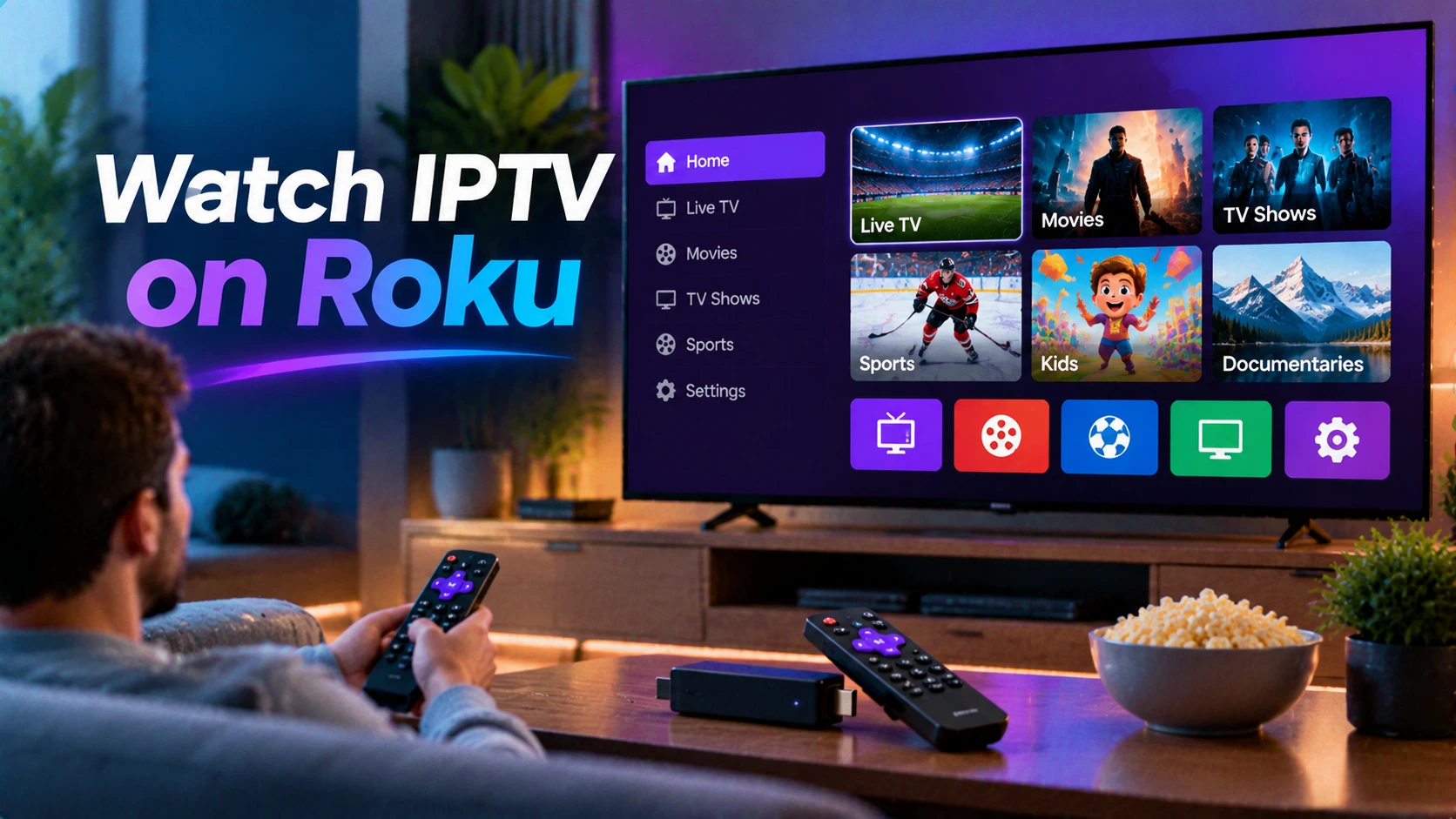
Roku is everywhere in Canada. Millions of TCL, Hisense and other TVs ship with Roku built in, and Roku sticks are a popular budget streamer. But if you have tried to set up IPTV on one, you have probably discovered the problem: Roku is a closed platform. You cannot sideload apps like you can on a Firestick, and most popular IPTV players are simply not in the Roku Channel Store. This guide explains exactly what is and is not possible, walks through four methods that work, and tells you which one gives the best experience.
Quick answer: You can watch IPTV on Roku, but not as easily as on other devices. Your options are: (1) a basic M3U player from the Roku Channel Store, (2) AirPlay from an iPhone or Mac to a compatible Roku, (3) screen mirroring from an Android phone or Windows PC, or (4) plugging a Fire TV Stick or Android TV device into another HDMI port. For daily use, option 4 gives by far the best experience and costs around $50–$90.
Why IPTV Is Harder on Roku
- No sideloading: Roku only installs channels from its own store. There is no equivalent of the Downloader app.
- Limited player selection: major players like TiviMate and IPTV Smarters Pro are not available on Roku, and IPTV-related channels are sometimes removed from the store.
- Fewer features: the M3U players that do exist on Roku tend to be basic, often without a full TV guide or Xtream Codes login.
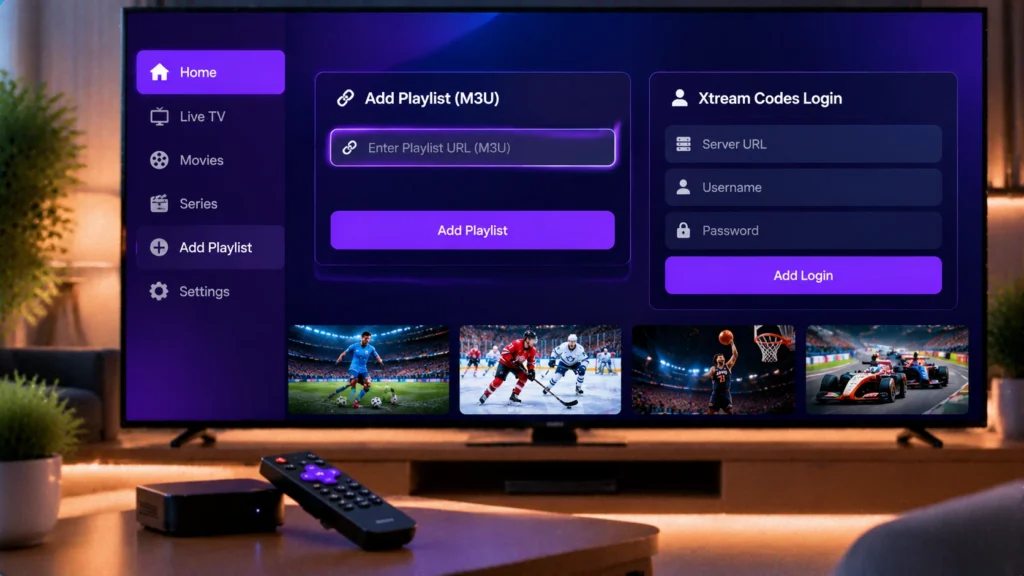
None of this means you need a new TV — it just means choosing the right workaround.
Method 1: An M3U Player From the Roku Channel Store
Some developers publish simple IPTV or M3U playlist players on Roku. Availability changes frequently, so search the store for “M3U” or “IPTV” and check the reviews.
- Press Home on your Roku remote and open Streaming Store (or Channel Store).
- Search for an M3U or IPTV player and add it.
- Open the player and enter your M3U playlist URL. Some players let you enter it from your phone or a web page to avoid typing with the remote.
- Browse channels from the list.
Good for: occasional viewing. Drawbacks: usually no proper TV guide, slower channel switching and limited support for large playlists. If your provider only gives Xtream Codes details, ask for an M3U link — our guide to M3U and Xtream Codes explains the difference.
Method 2: AirPlay From an iPhone, iPad or Mac
Many recent Roku devices and Roku TVs support Apple AirPlay. This lets you run a full-featured IPTV app on your Apple device and send the video to the TV.
- On the Roku, go to Settings > Apple AirPlay and HomeKit and make sure AirPlay is on.
- Connect your iPhone or Mac to the same Wi-Fi network.
- Play a channel in your iOS IPTV app (see our iPhone and iPad IPTV guide).
- Tap the AirPlay icon and select your Roku.
Check Roku’s list of AirPlay-compatible devices on its support site, since older models are not supported.
Method 3: Screen Mirroring From Android or Windows
Roku supports screen mirroring from Android phones and Windows PCs (using the Miracast standard).
- On the Roku, go to Settings > System > Screen mirroring and set the mode to Prompt or Always allow.
- Android: open Quick Settings and tap Smart View, Cast or Screen Cast (the name varies by brand), then pick your Roku.
- Windows: press Windows + K and select your Roku.
- Open your IPTV app and play a channel full screen.
Drawbacks: mirroring sends your whole screen, so notifications appear on the TV, quality depends on Wi-Fi, and your phone must stay on. It is fine for a single game, not for everyday TV.
Method 4: Add a Streaming Stick (Recommended)
The most reliable solution is to plug a Fire TV Stick or Android TV / Google TV device into a free HDMI port on your Roku TV. You keep Roku for Netflix and YouTube, and use the stick for IPTV with a proper app, TV guide and remote.
- Fire TV Stick 4K: easy, affordable and supports TiviMate and IPTV Smarters. Follow our Firestick IPTV guide.
- Google TV Streamer or other certified Android TV box: installs IPTV players straight from Google Play. See our Android TV box setup guide.
Most Roku TVs let you rename the HDMI input (for example “IPTV”) and switch to it from the Roku home screen.
Comparison: Which Roku Method Should You Use?
| Method | Extra cost | TV guide | Reliability | Best for |
|---|---|---|---|---|
| Roku M3U player | Free to low | Limited or none | Fair | Occasional viewing |
| AirPlay | None (if you own an Apple device) | Yes, on the phone app | Good | iPhone households |
| Screen mirroring | None | Yes, on the phone app | Fair | One-off games |
| Streaming stick | ~$50–$90 one-time | Full | Excellent | Everyday TV |
Tips for Better Streaming on a Roku TV
- Use a wired Ethernet connection if your Roku TV has a port, especially for sports.
- Allow about 15 Mbps per HD stream; test with Speedtest at peak time.
- Turn off “Fast TV start” only if you see stability problems — it keeps the TV partly on in standby.
- Restart the Roku from Settings > System > Power > System restart once a week.
Get Started
StreamX supports M3U and Xtream Codes, so it works with every method above. Test it with a free 24-hour trial, then choose your plan on the pricing page. Need help picking a player? See our best IPTV player comparison and all our setup tutorials.
Frequently Asked Questions
Can you watch IPTV on Roku?
Yes, with limitations. You can use a basic M3U player from the Roku store, AirPlay from an Apple device, screen mirroring from Android or Windows, or plug a Firestick into your Roku TV.
Is IPTV Smarters or TiviMate available on Roku?
No. Neither app is available in the Roku Channel Store, and Roku does not allow sideloading.
Can I sideload apps on Roku like on a Firestick?
No. Roku only installs channels from its own store. Developer mode exists only for testing apps you build yourself.
What is the best way to watch IPTV on a Roku TV?
Plug a Fire TV Stick or Android TV device into a spare HDMI port. It gives you a full IPTV app with a TV guide while keeping Roku for other streaming apps.
Does Roku support AirPlay for IPTV?
Many recent Roku devices and Roku TVs support AirPlay, so you can send IPTV from an iPhone, iPad or Mac. Older models may not support it.